Help · LocalKey Travel app
LocalKey app guide
Everything your travel specialist has arranged, in your pocket: each day’s plan, your tickets, a Chinese address card for the driver and a concierge for menus and signs. This guide shows you how to use it, screen by screen.
For the LocalKey Travel app, version 2.0.0 · iPhone and Android
Quick start
Up and running in 60 seconds
- Install LocalKey Travel from the App Store or Google Play.
- Tap the trip link your specialist sent you. Your trip opens straight away — no account or password.
- Allow notifications when asked (or tap Turn on in Updates), so train, flight and timed-entry reminders reach you in time.
- Open it once on Wi-Fi. Your trip, tickets and guides are then saved on the phone and work without a signal.
- Know the four tabs: Trip (map and day plan), Bookings (tickets and confirmations), Concierge (menus, signs, questions) and Essentials (phrases, money, contact and settings).


1 · Getting started
Opening your trip
Your specialist builds your trip and sends it to you as a link, usually in your WeChat trip group or by email. The link is your key: there is nothing to sign up for.
How to open your trip for the first time
- Install LocalKey Travel from the App Store (iPhone) or Google Play (Android).
- Tap the trip link your specialist sent. The app opens and shows Opening your trip for a moment.
- Your trip appears on the Trip tab, with the map at the top and today’s plan below.
If tapping the link opens a web page instead of the app, copy the link, open the app and paste it into the Trip link box, then tap Open my trip.
How to switch trips or paste a new link
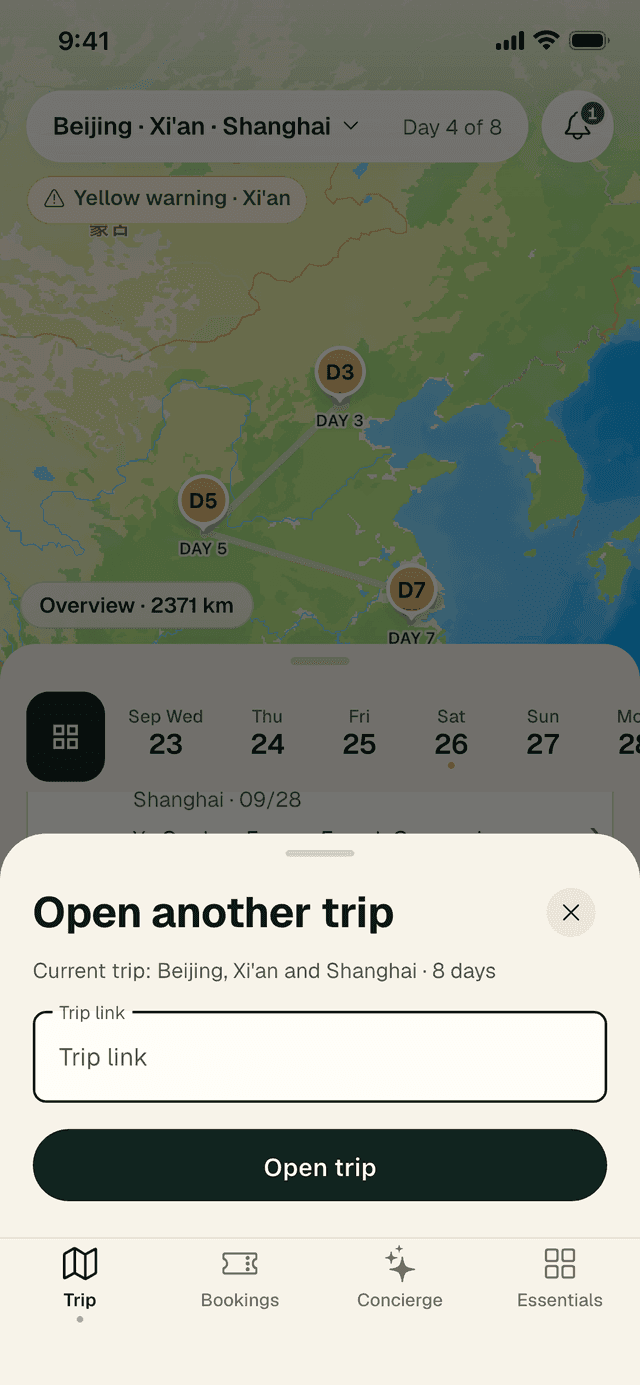
- On the Trip tab, tap the trip name at the top of the screen (for example “Beijing · Xi’an · Shanghai”).
- The Open another trip panel shows which trip is open now.
- Paste the new link into Trip link and tap Open trip.
If a link has expired
For your security, trip links are renewed from time to time. If you see This trip link has expired, nothing is lost — your specialist simply issues a fresh link.
- Tap Message the trip group to ask in your WeChat group. You will usually have a new link within minutes.
- Copy the new link, return to LocalKey and tap Paste a new link.
- Not on WeChat? Email service@localkeytravel.com and we will send one by return.
You might also see This trip isn’t ready yet (your specialist is still finishing it — try again later) or No connection (connect to Wi-Fi or mobile data; once your trip has opened once, it also works offline).
2 · The Trip tab
Your map and day-by-day plan
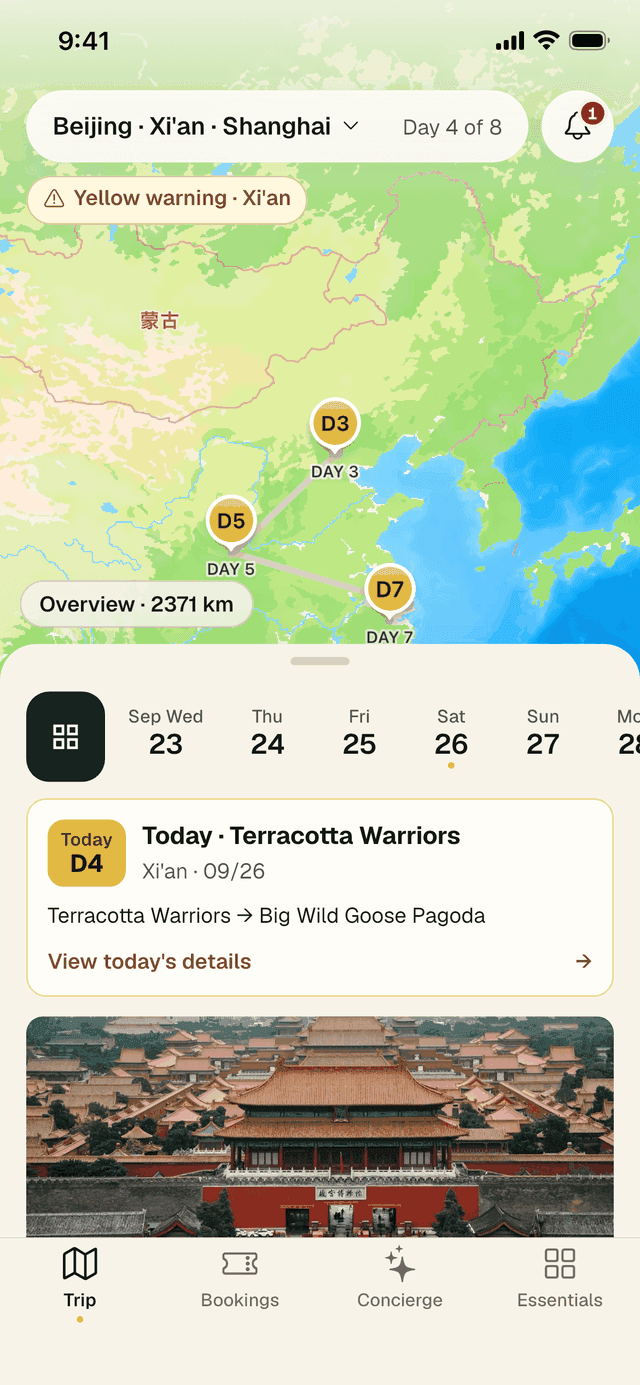
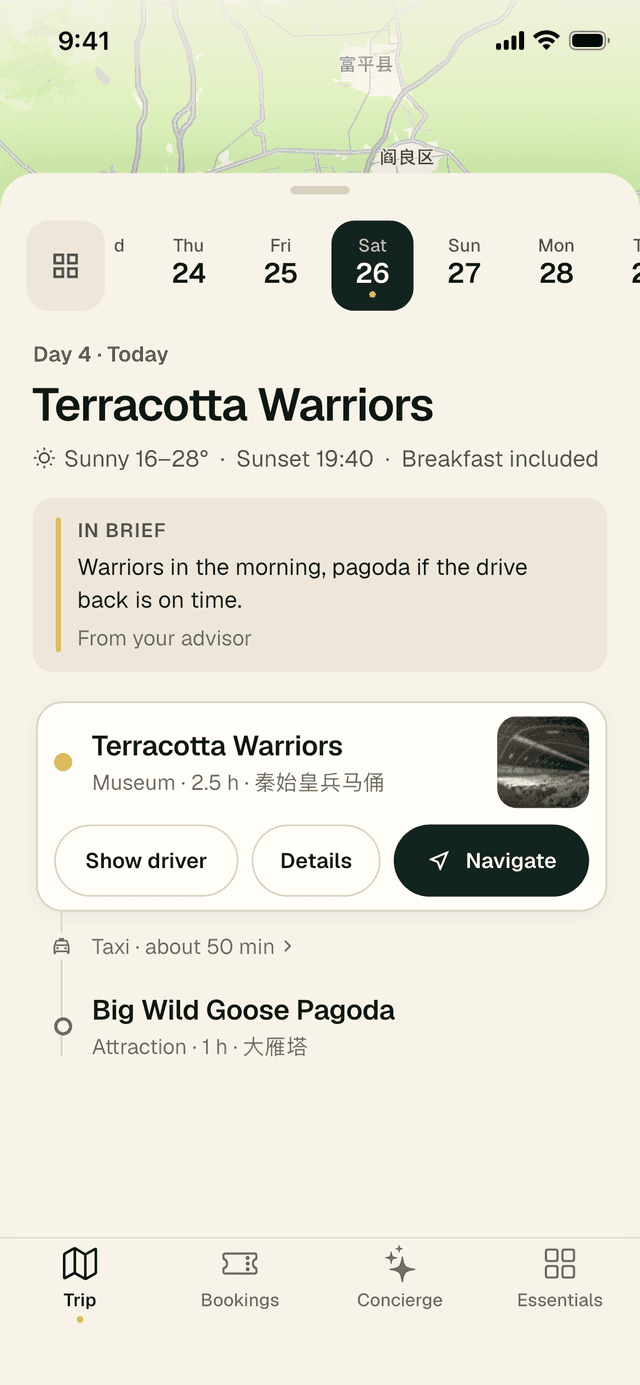
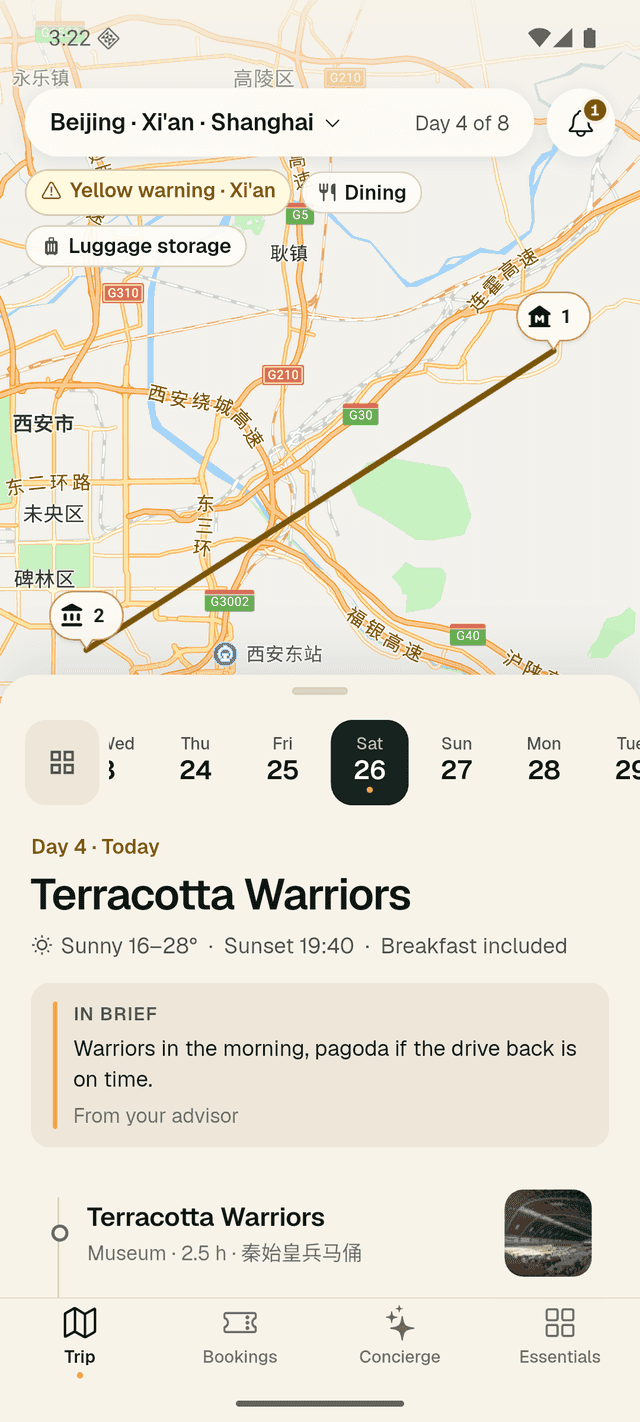
The Trip tab is where you will spend most of your time. The map sits at the top; the panel below holds the day strip and the plan for the day you choose. Drag the panel up to read more, or down to see more of the map.
Overview or a single day
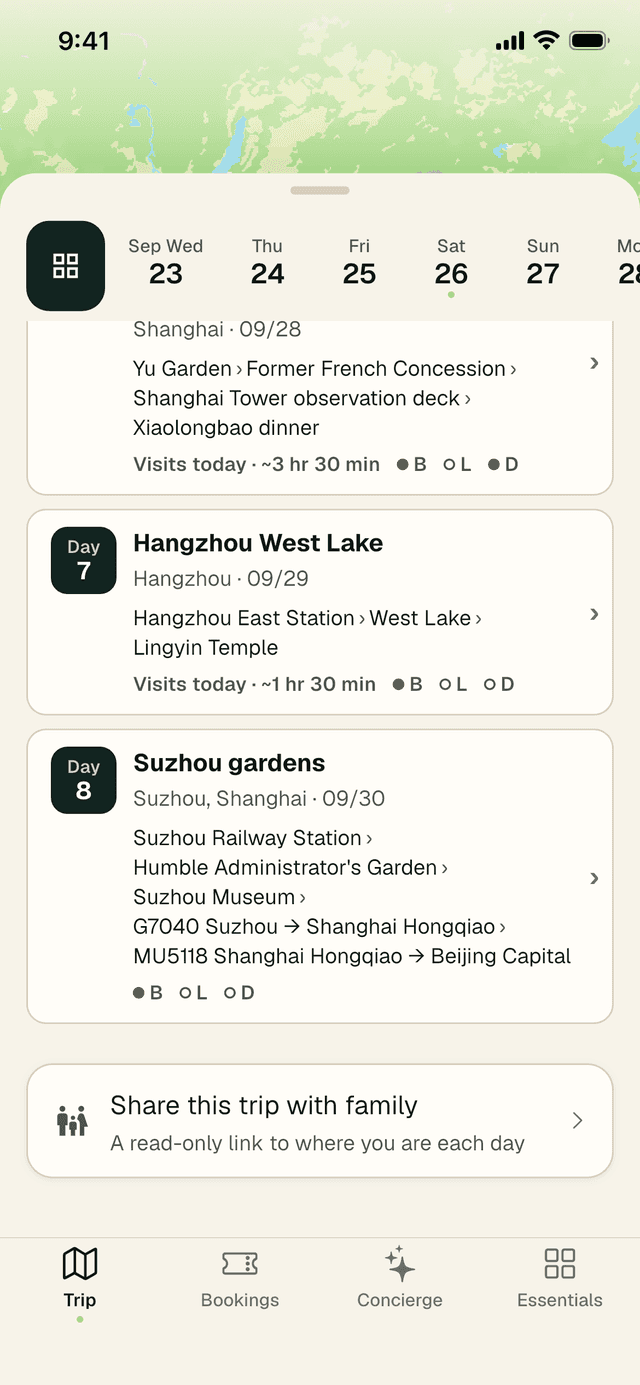
- Overview — tap the square grid button at the left of the day strip. The map shows the whole route city by city (with the total distance), and the panel lists each day in turn. At the end of the list is Share this trip with family (see section 11).
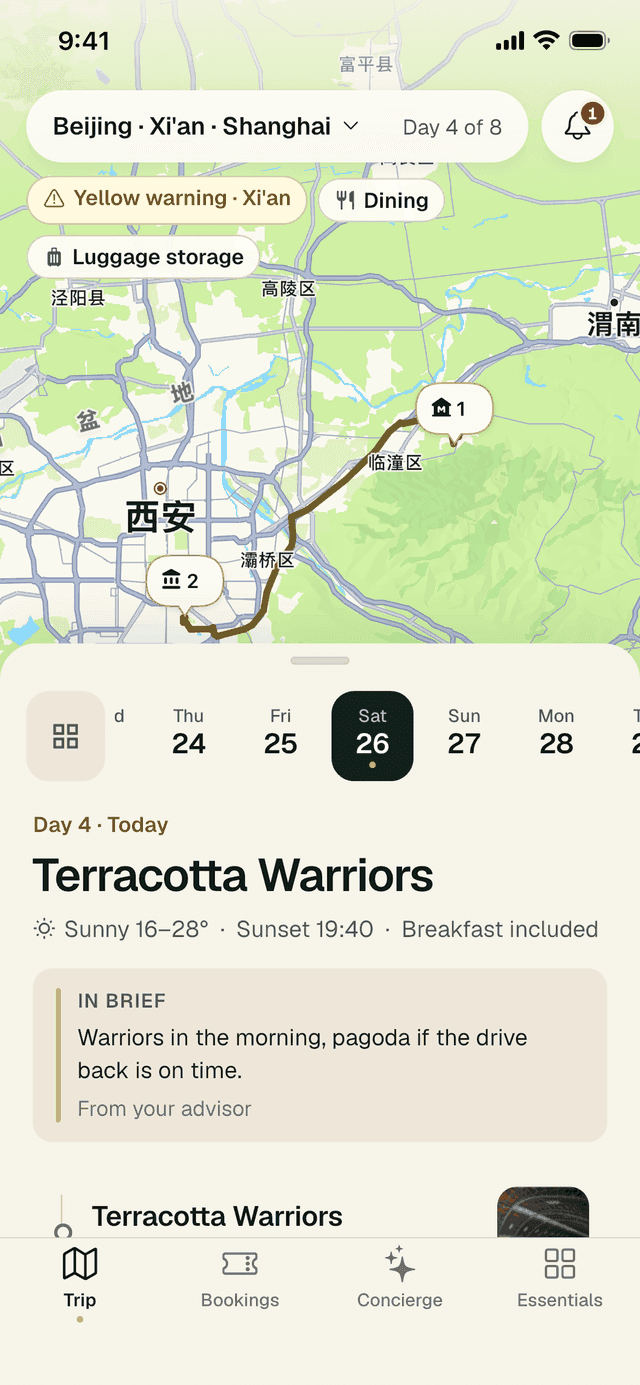
- A single day — tap a date in the day strip. The map zooms to that day’s stops, numbered in order. Today is marked with a small gold dot.
Route lines. Where a route is available, the line between stops follows the roads or the rail line. Where it isn’t, LocalKey draws a dashed line straight from stop to stop to show the approximate way. A dashed line shows the rough direction only; use Navigate for real directions.
The day plan
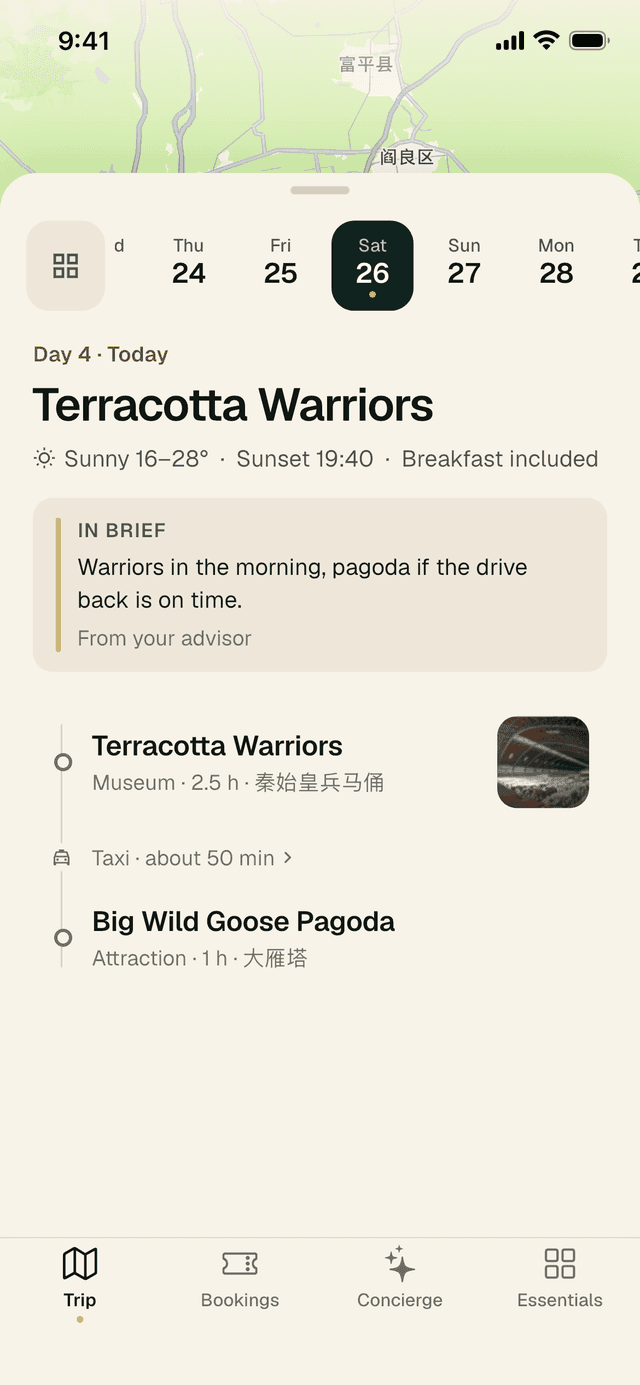
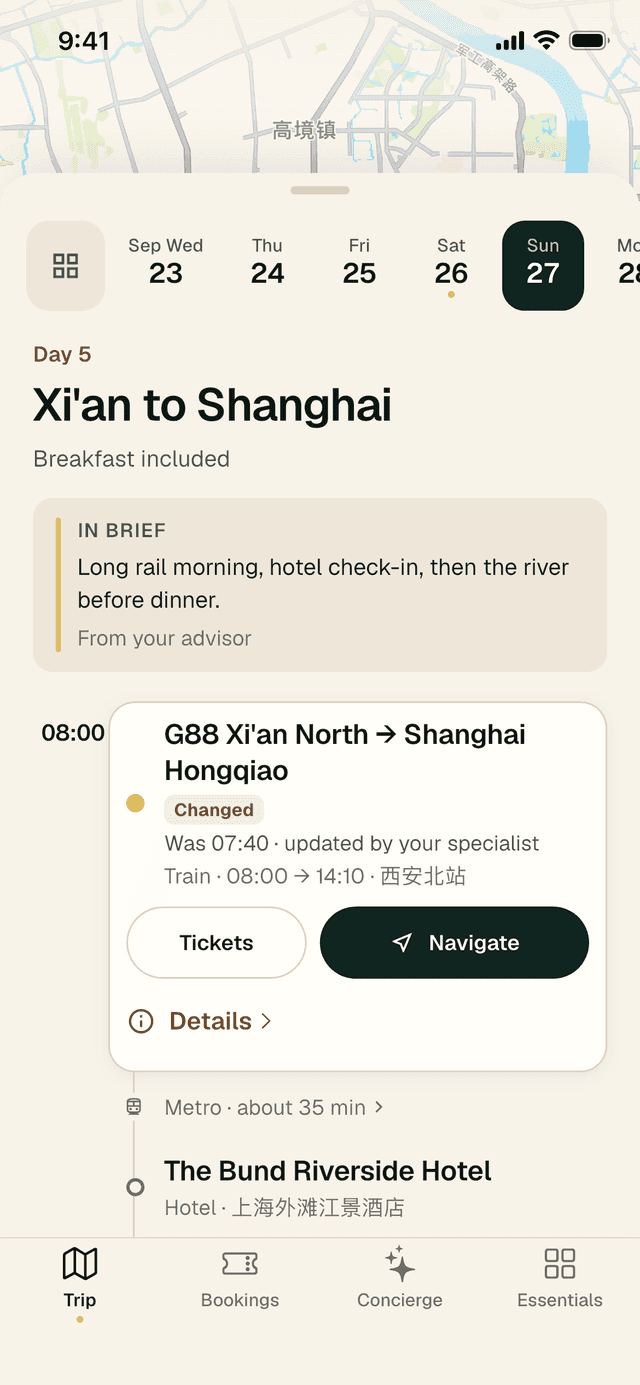
Each day opens with a short headline, the weather, sunset time and which meals are included. An In brief note from your specialist sits underneath — tap Read full note when there is more.
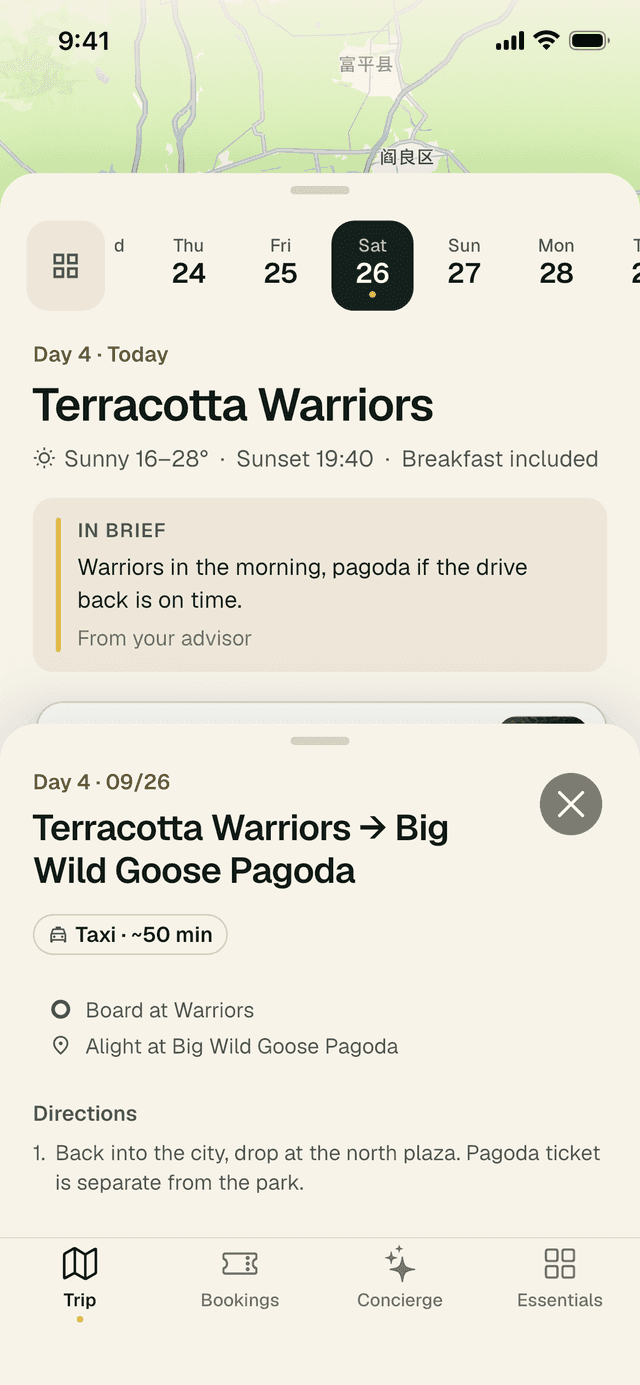
Below it, the stops are listed in order, with the way to travel between them. The list stays calm: nothing moves or jumps as you scroll.
How to open a stop
- Tap a stop. It opens in place and shows its actions:
- Show driver — a large Chinese address card (see section 5).
- Details — the full place card. When the stop has tickets, this button becomes Tickets and opens them straight away; Details › then sits on its own row underneath.
- Navigate — directions in a map app.
- Tap the stop again to close it.
- Tap a numbered pin on the map and the matching stop opens in the list.
The Next up card
Most of the time the top of the panel is clear. A dark Next up card appears there only when a reminder is due — at the same moment as the reminder on your phone, even if you have notifications turned off:
| What’s coming | When the card appears |
|---|---|
| International flight | 4 hours before departure |
| Domestic flight (both airports in mainland China) | 3 hours before departure |
| Train, ferry or transfer | 90 minutes before departure |
| Timed entry to a sight | 60 minutes before your entry time |
| Hotel check-in | At check-in time |
The card shows what it is and when, a countdown, Leave by with the time to set off, and details such as gate, coach, seat or platform when we have them. Tap Open ticket for the tickets (choose a traveller first if there are several) or Navigate for directions to the station, airport or venue.
- Done with it? Tap the × at the top right. The card stays closed for that event.
- It comes back only if something important changes: a flight delay grows by 30 minutes or more, a cancellation, a gate change, or your specialist changes the time.
- It closes itself once the moment has passed: 10 minutes after departure, 30 minutes after a timed entry, or an hour after check-in time.
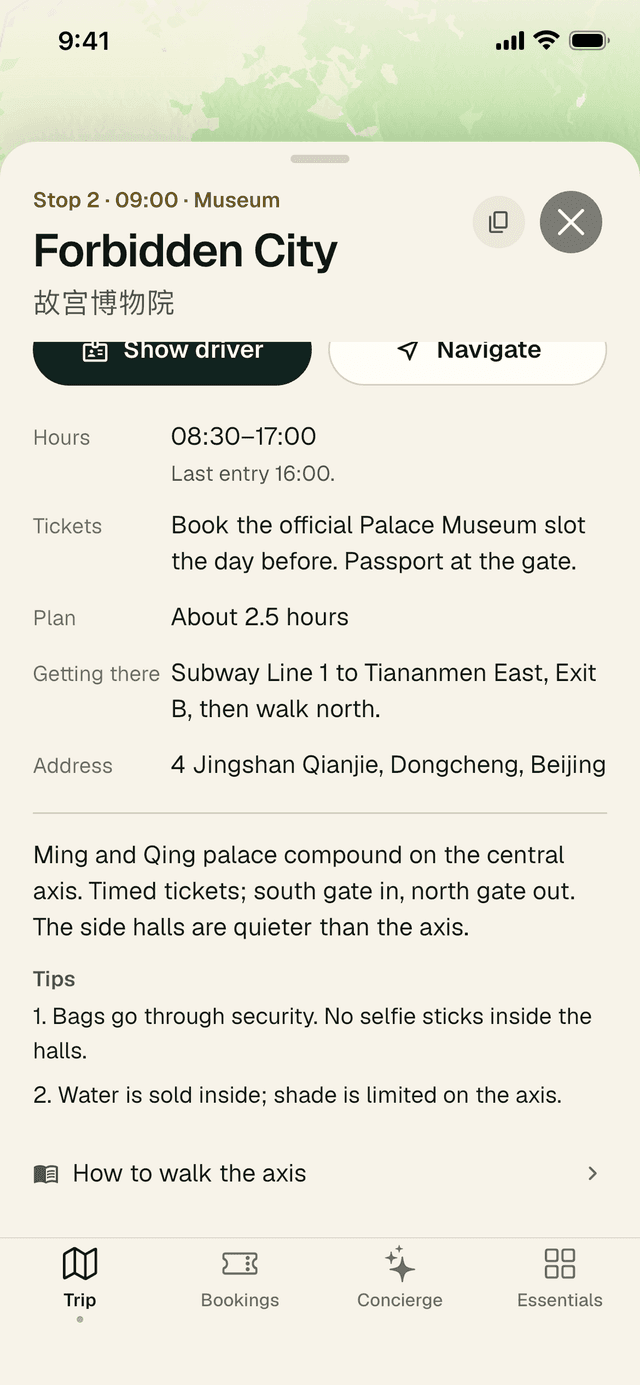
Place details
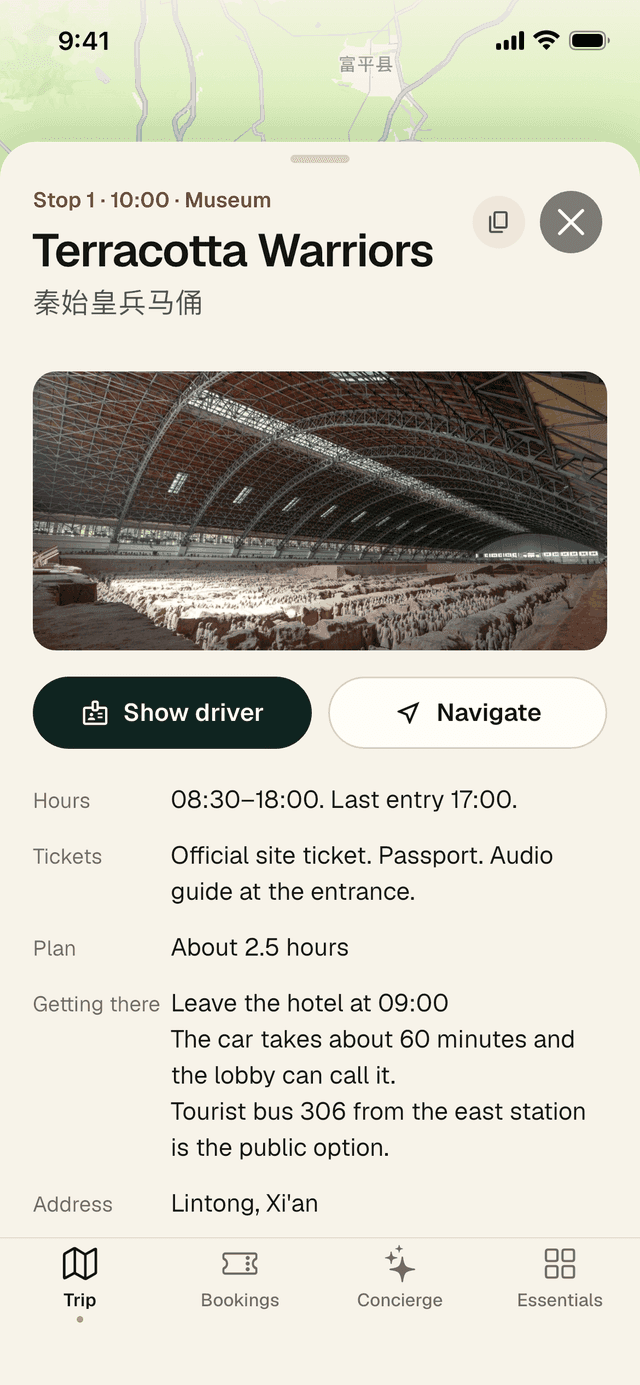
Tap Details on any stop to open its place card:
- The English and Chinese names, the stop number and time, and photos.
- Good to know: Hours, Tickets, Plan (how long to allow), Getting there and Address.
- A short introduction, Tips from your specialist and, for bigger sites, a guide you can open (for example “How to walk the axis”).
- Your tickets — when a ticket or booking confirmation for this place is on your trip link, it appears here and opens full screen. At a hotel it reads Booking confirmation.
The copy button next to the name copies the English name, Chinese name or address — handy for pasting into a message.
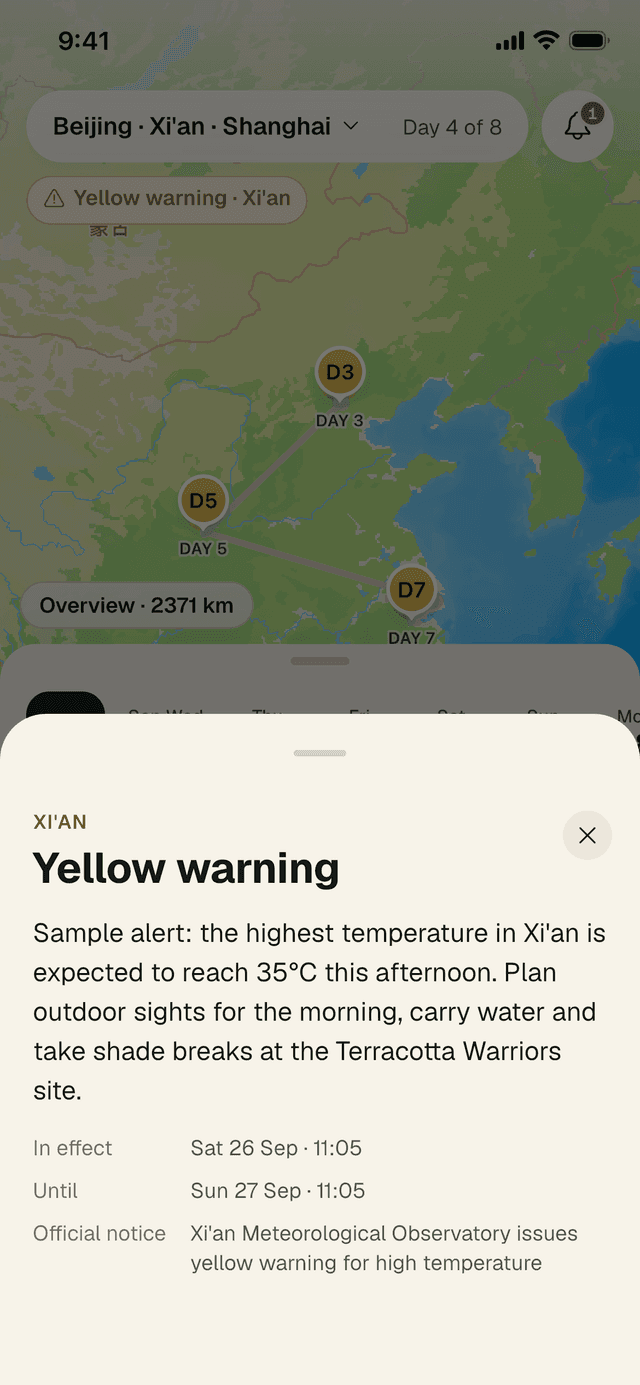
Map chips and weather alerts
Small chips float over the map. Dining and Luggage storage show useful places nearby. When an official weather warning is in force where you are staying, a coloured chip appears (for example Yellow warning · Xi’an).
- Tap the warning chip to read what it means and what to do.
- Check In effect and Until for the times it applies.
- Close it with the ×. The same alert is also listed in Updates.
3 · Updates
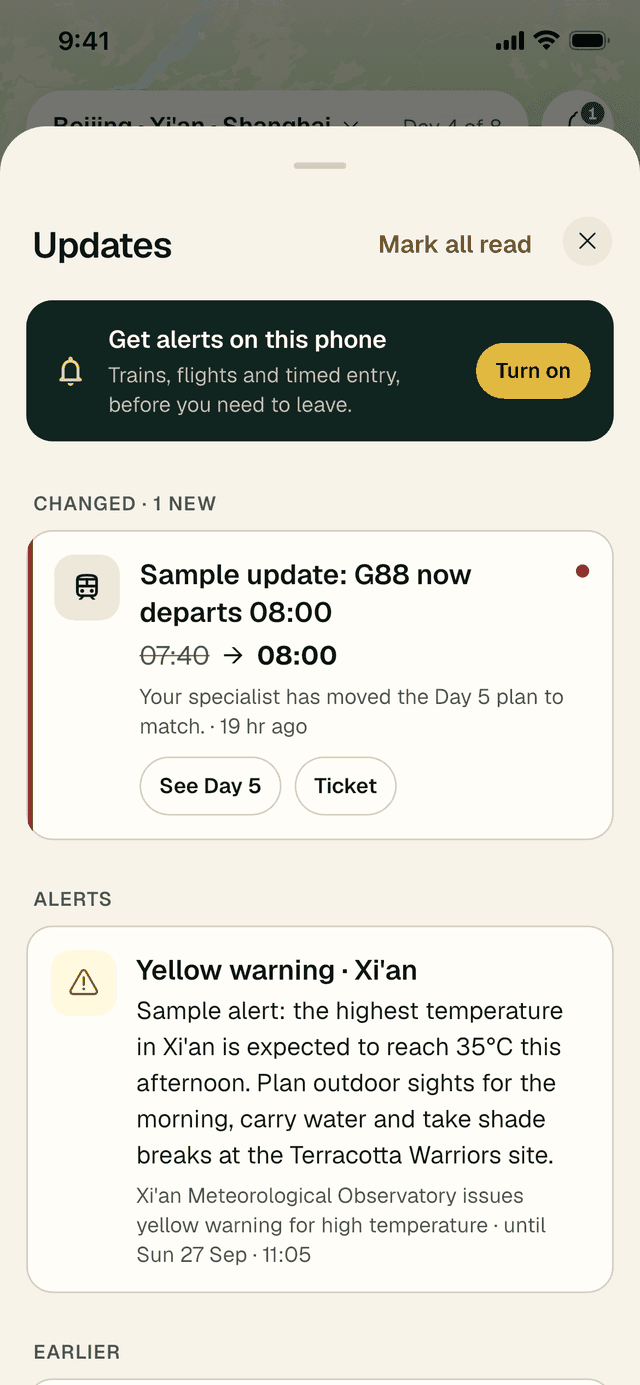
The bell: what changed and what needs attention
The bell at the top right of the Trip tab shows a red count when something is new. Your full plan always lives on the Trip tab; Updates only shows what has changed and what needs your attention.
How to check your updates
- Tap the bell.
- Under Changed, each change shows the old value crossed out and the new one beside it (for example
07:40→ 08:00), with a line from your specialist. - Tap See Day 5 to jump to that day, or Ticket to open the ticket.
- Under Alerts you will find official notices such as weather warnings.
- Tap Mark all read when you are done. Older messages are tucked under Earlier.
If you have not yet allowed notifications, a Get alerts on this phone card appears here. Tap Turn on.
4 · Bookings
Tickets, hotels, flights and trains
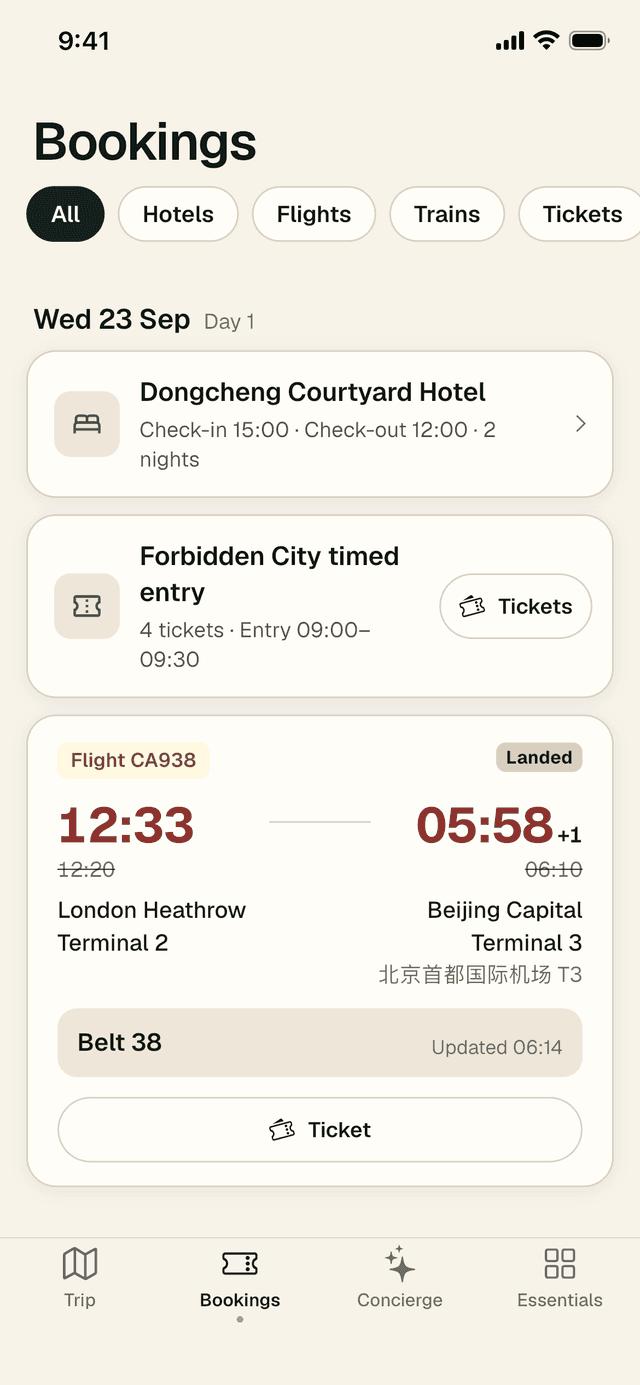
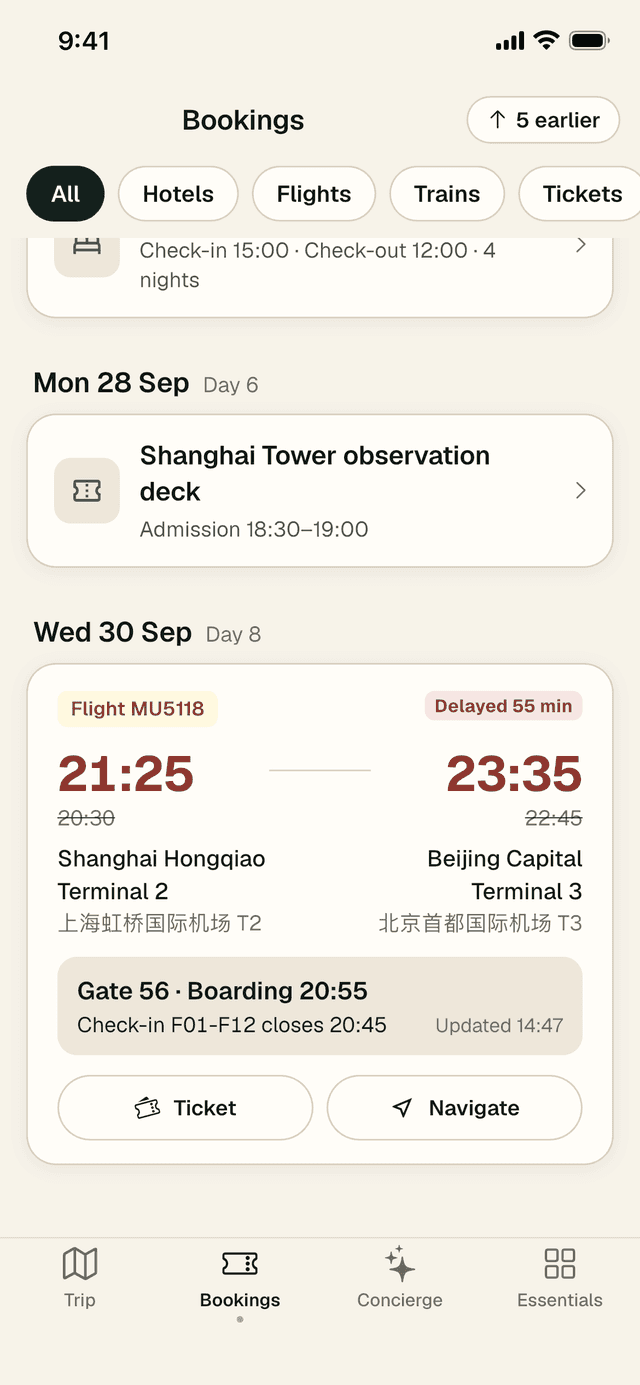
The Bookings tab holds every confirmation your specialist has issued, grouped by day and starting from today. Use the filters — All, Hotels, Flights, Trains, Tickets, Other — to narrow the list. Earlier bookings are one tap away under the earlier button at the top.
When a booking has a ticket or confirmation file, its row carries a button to open it directly: Ticket, Tickets (one per traveller) or Booking. Tap anywhere else on the row for the full details.
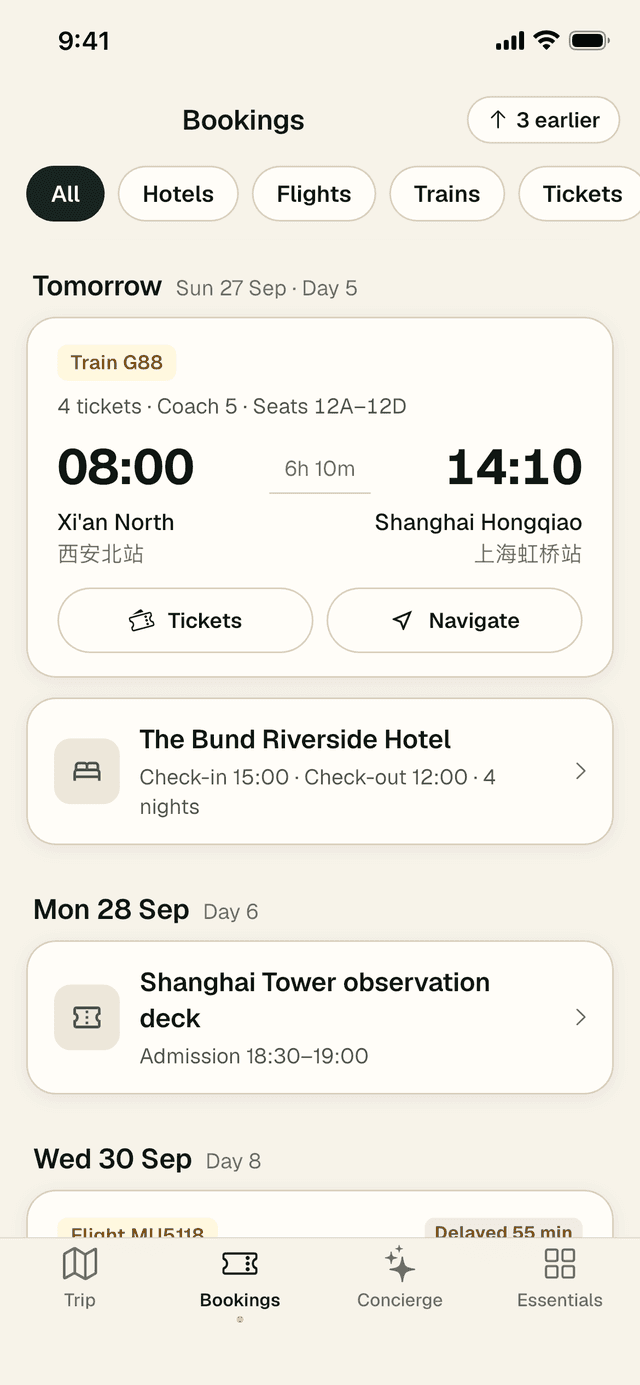
Live flight status
For flights, LocalKey follows live status and updates the card on its own:
- Before departure: Delayed with the new time (the old time is crossed out), check-in counters and when check-in closes, Gate and Boarding time.
- After landing: Landed and your Belt for baggage.
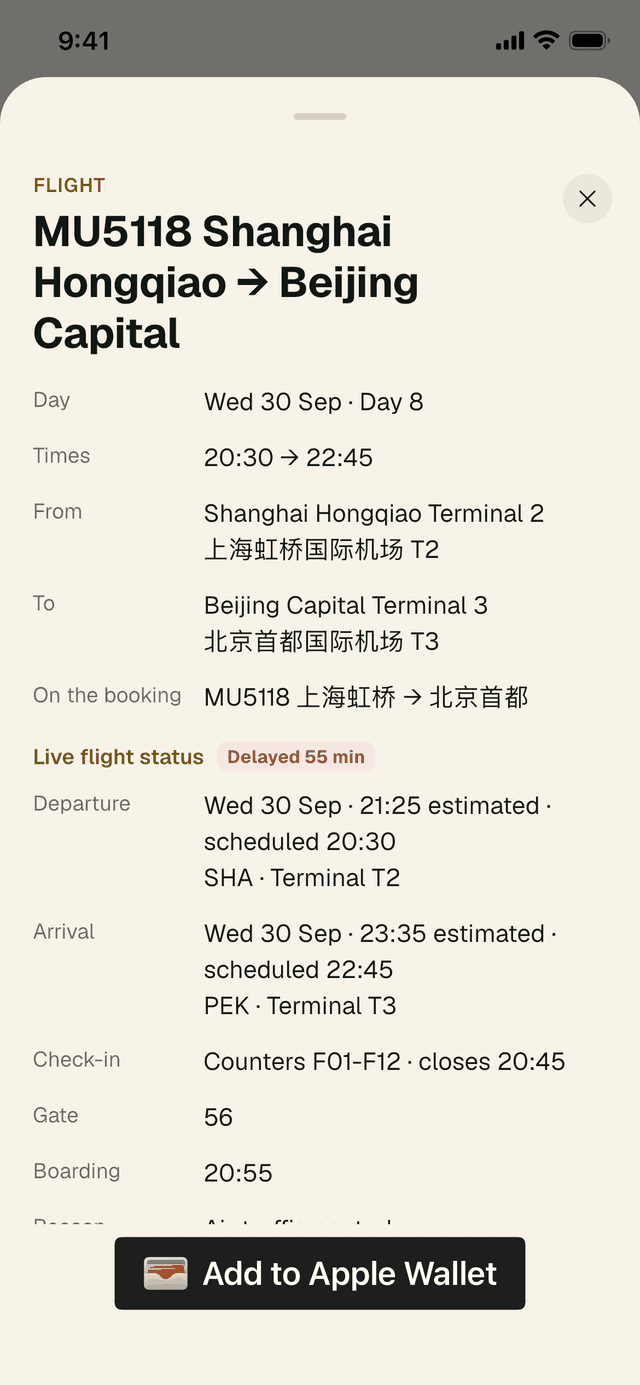
- Tap the flight for full detail, including the reason for a delay and when the status was last updated.
Connecting flights: when your journey has more than one flight, they are shown together as one journey (for example “1 stop”) with each leg underneath and the connection time. If you need to clear immigration and re-check your bags, or your next flight leaves from a different airport in the same city, the card tells you so you can allow time.
For what LocalKey sends you before a flight, see section 8.
How to open a ticket at the gate
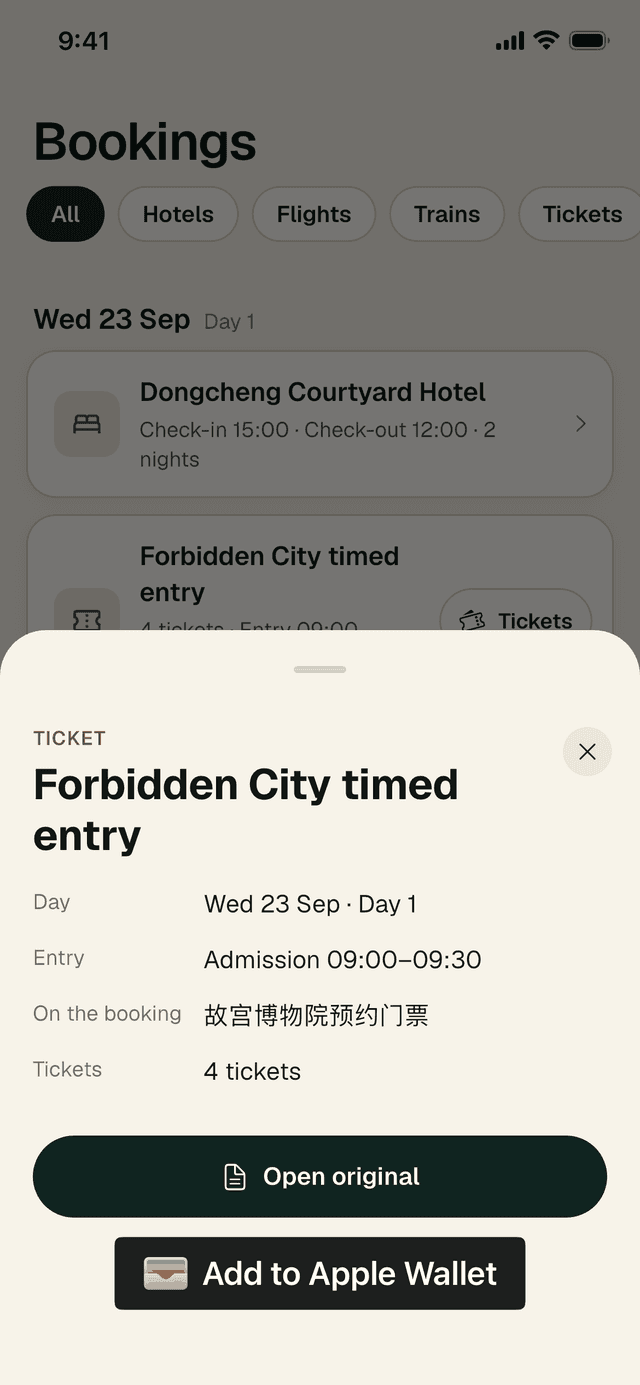
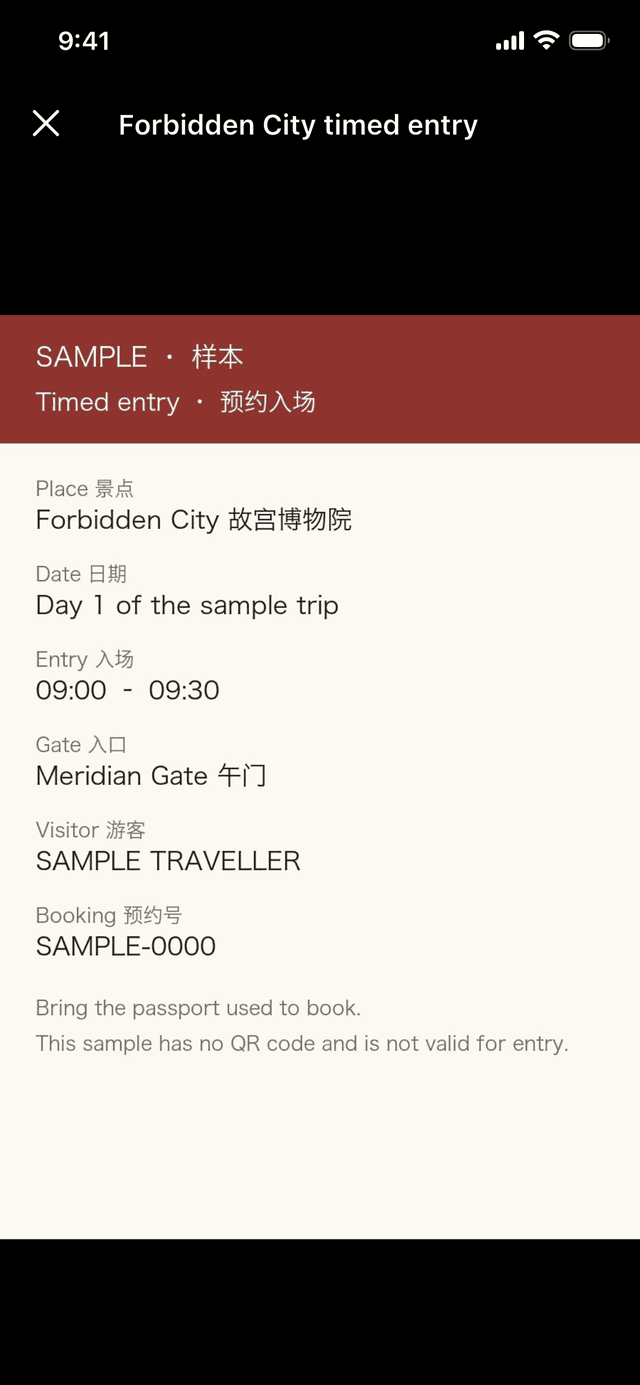
- Tap Ticket or Tickets on the booking row — or tap the booking, then Open original.
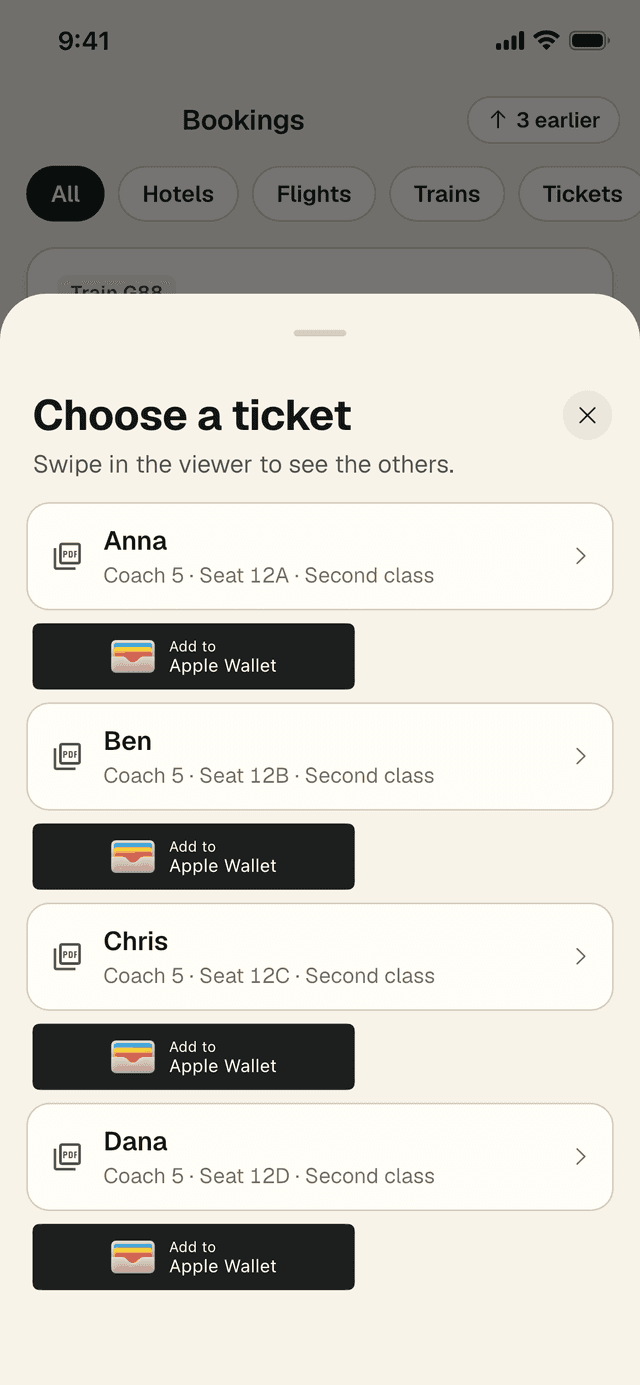
- If there are tickets for several travellers, Choose a ticket appears. Tap a name; swipe in the viewer to see the others.
- The original opens full screen with the brightness raised, ready for the scanner.
Where there is no original file, the detail sheet shows exactly what you need at the desk or gate, and your specialist holds the original.
Add to Apple Wallet (iPhone)
On iPhone, supported tickets and flights show an Add to Apple Wallet button. Tap it, then Add in the Apple screen that follows. The pass then sits in Wallet alongside your other cards. Your ticket also stays in Bookings, so you always have both. Android phones do not have this button; use Bookings instead.
Offline badges
Once a ticket’s original has been saved to your phone, its card reads Available offline. That means it will open even in a station with no signal. See section 10 for what else is saved.
5 · Getting around and ordering
Show your driver, Navigate and the waiter card
How to show your driver where to go
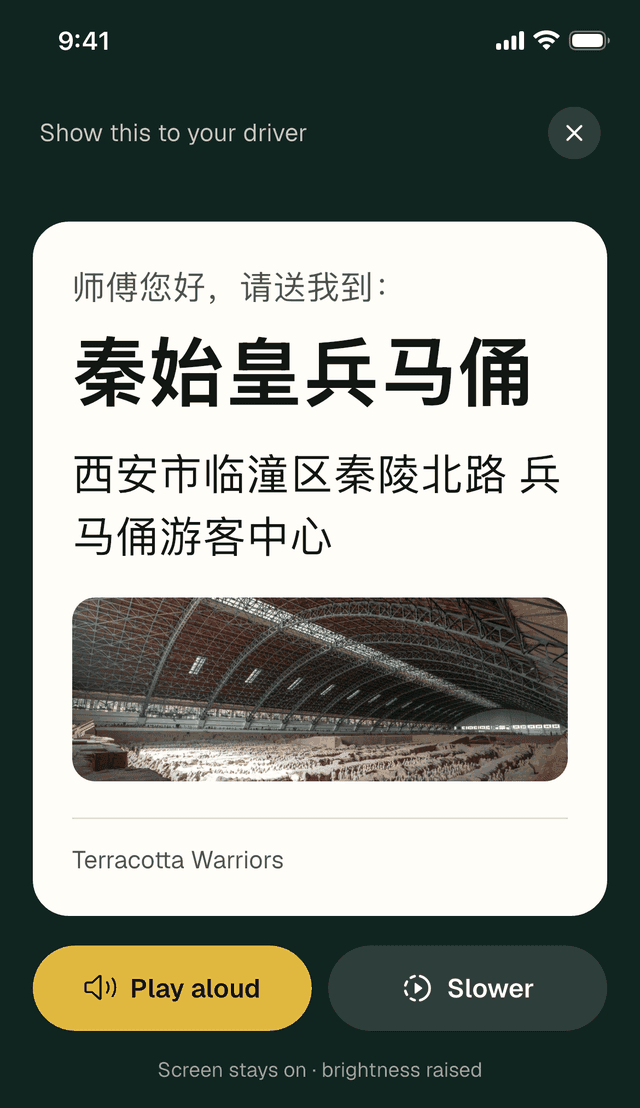
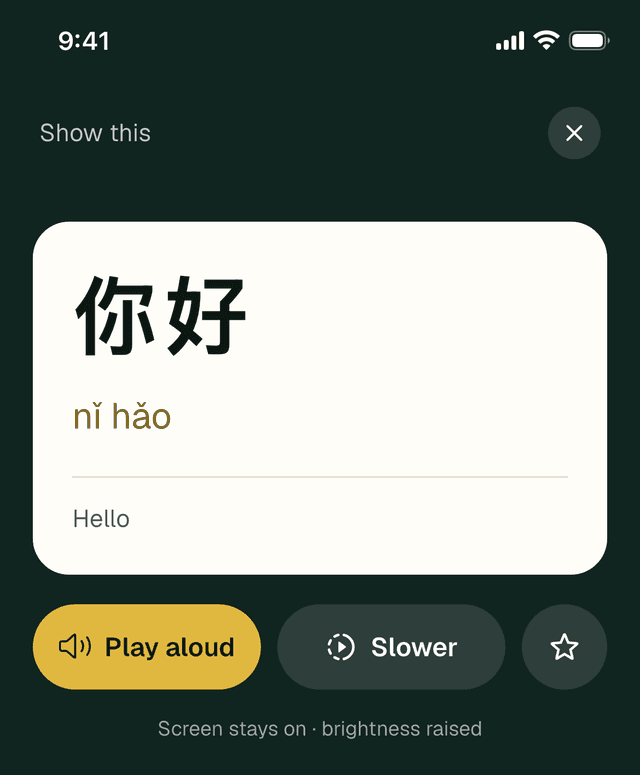
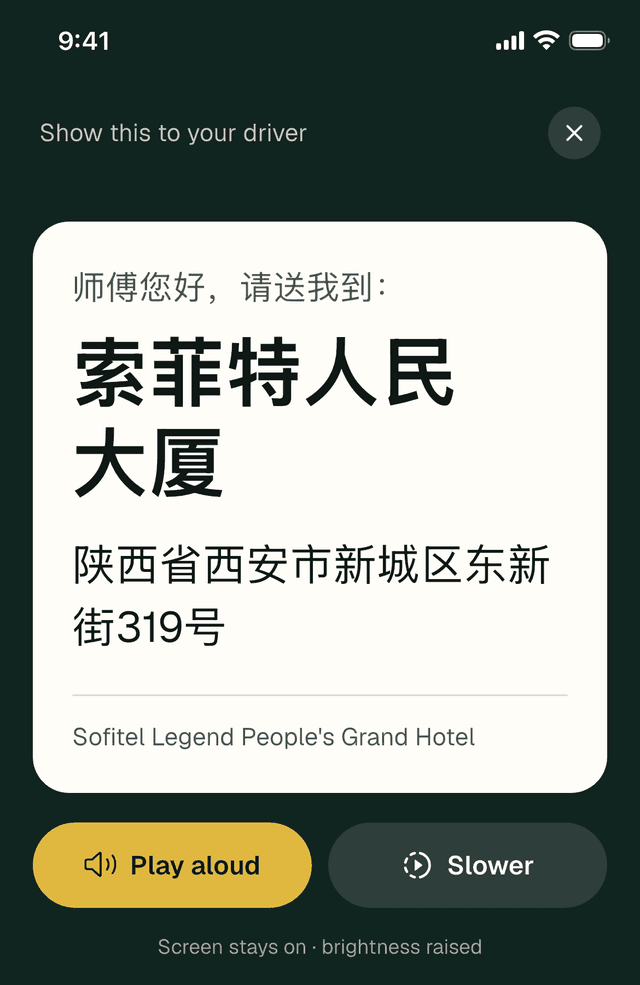
Taxi and ride-hailing drivers in China read Chinese addresses much faster than English ones. The driver card shows the place in large Chinese characters with a polite request to take you there.
- Tap Show driver on a stop, a place card or the Navigate panel.
- Turn the phone towards the driver. The screen stays on and the brightness goes up.
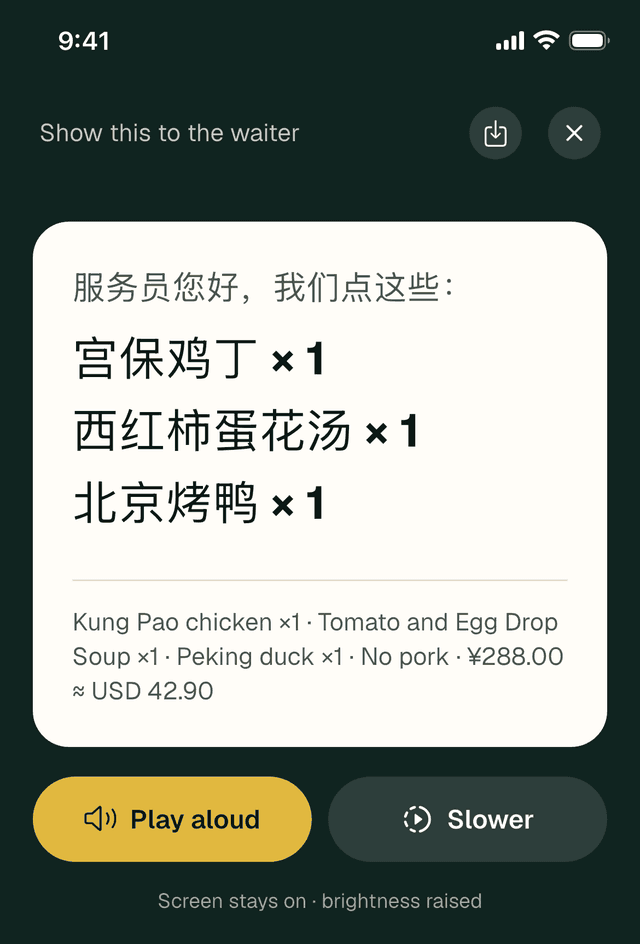
- Tap Play aloud to have the address read out in Mandarin, or Slower for a gentler pace.
Heading back at the end of the day? In Essentials, tap Back to hotel for the same card with tonight’s hotel.
How to get directions in a map app
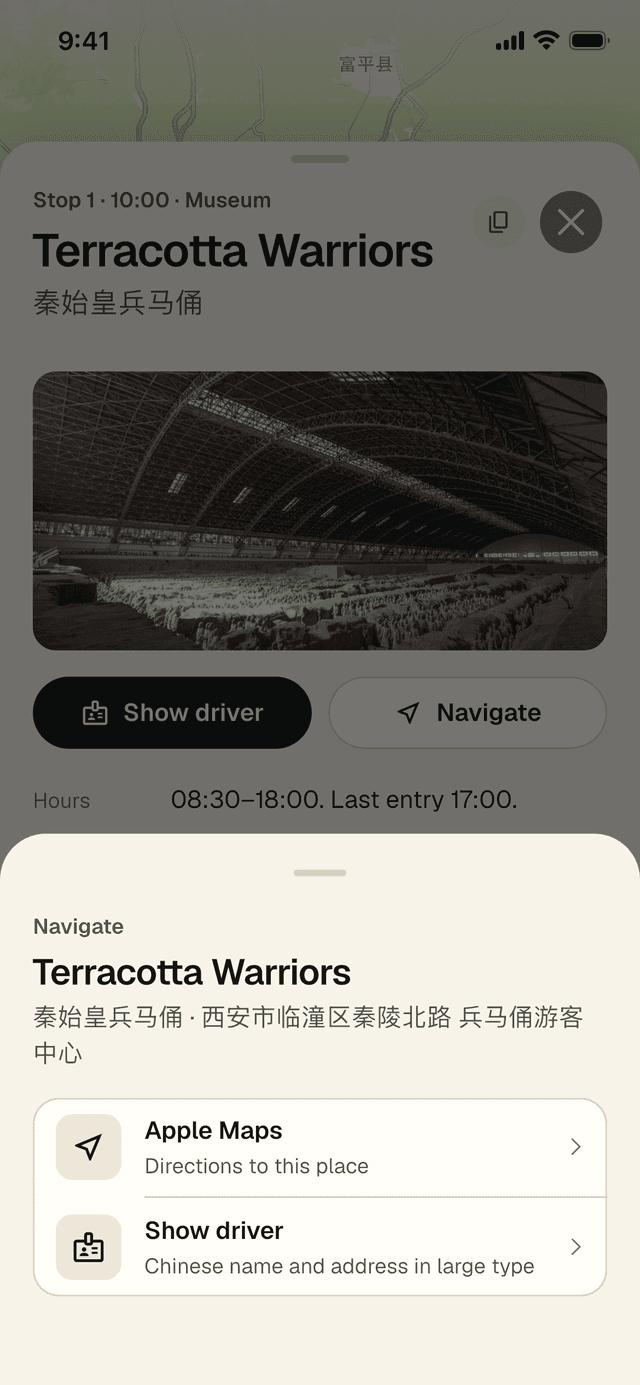
- Tap Navigate on a stop, a booking, a place card or the Next up card. For trains and flights, it takes you to the departure station or airport.
- Choose a map app. LocalKey lists the ones installed on your phone: Amap (Gaode), Baidu Maps, Tencent Maps, Apple Maps (iPhone) or Google Maps. Other map apps lets you choose any other.
- The app opens with directions to the place, or searches it by name.
Tip: within mainland China, Amap (Gaode) usually has the most accurate walking and public transport directions. It is worth installing before you fly.
How to order with the waiter card
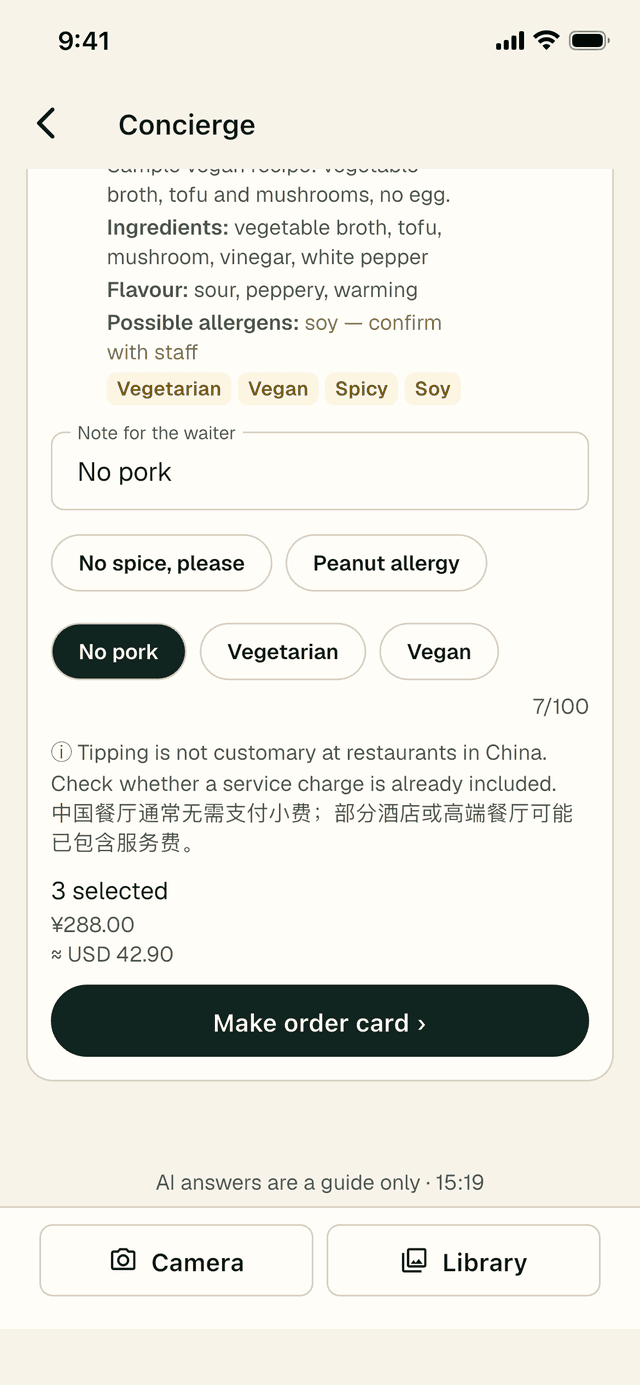
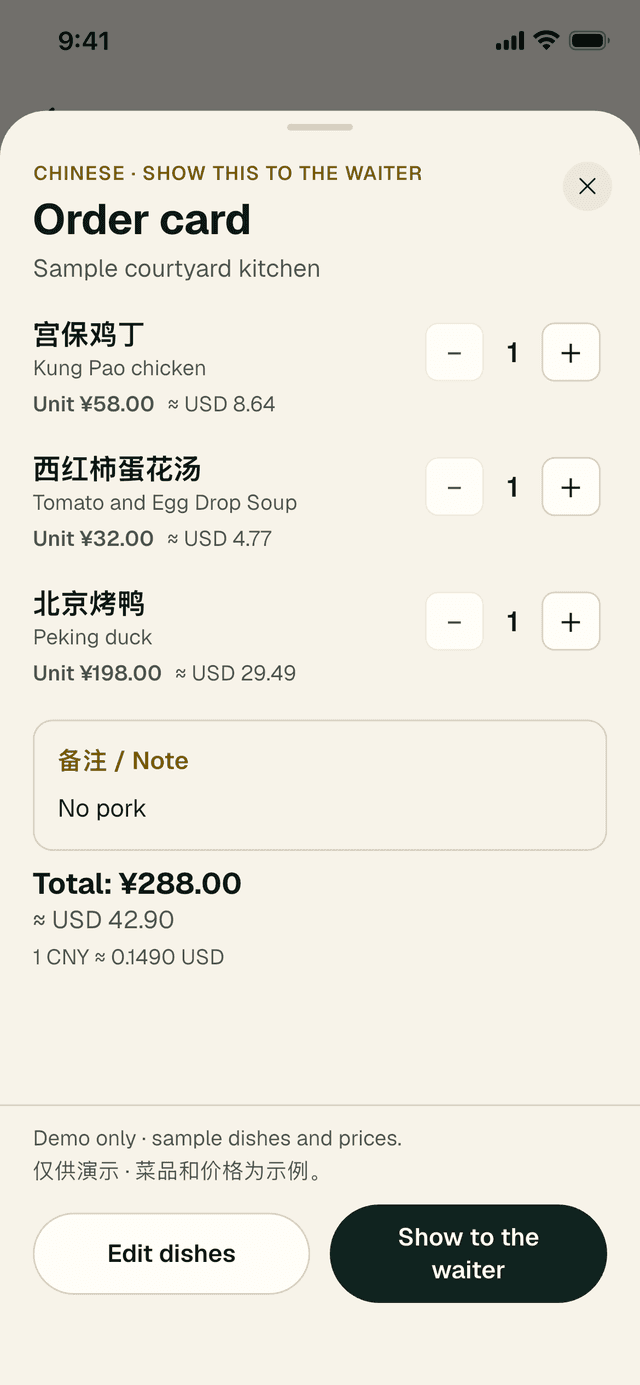
After Concierge reads a menu for you (see section 6), tick the dishes you want, add a note and tap Make order card. The Order card lists each dish in Chinese and English with quantities and a running total. Tap Show to the waiter for a full-screen card in large Chinese type, with Play aloud. You can also save it as an image.
6 · Concierge
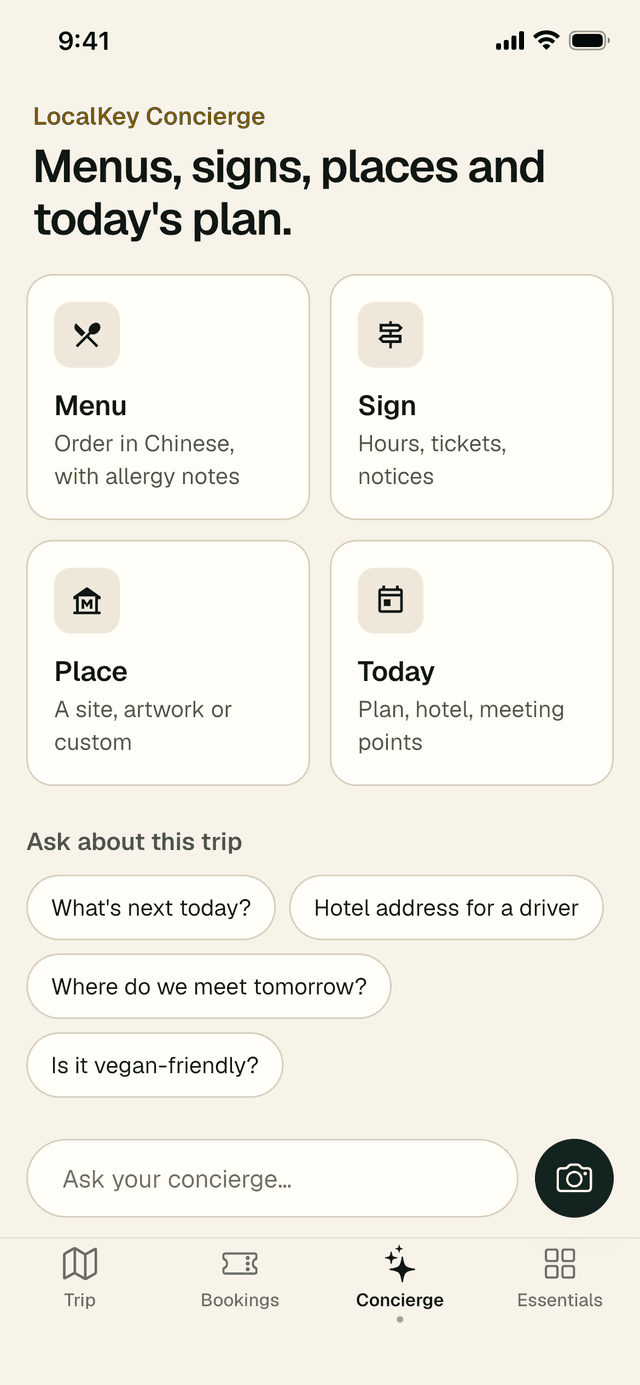
Menus, signs, places and today’s plan
The Concierge tab knows your trip. Point your camera at a menu or a sign, or ask a question in your own words. Answers are a guide only — for bookings or changes, your specialist has the final word.
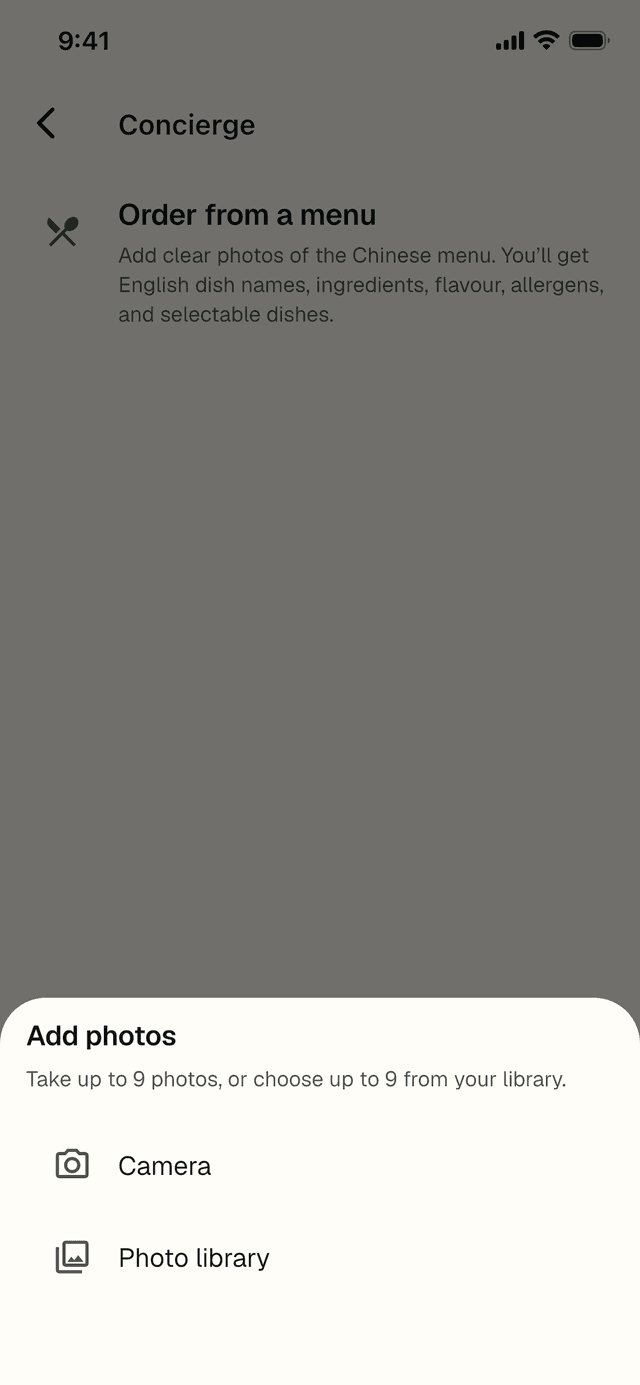
How to read a menu
- Tap Menu, then Camera or Photo library. Photograph each page flat and in good light.
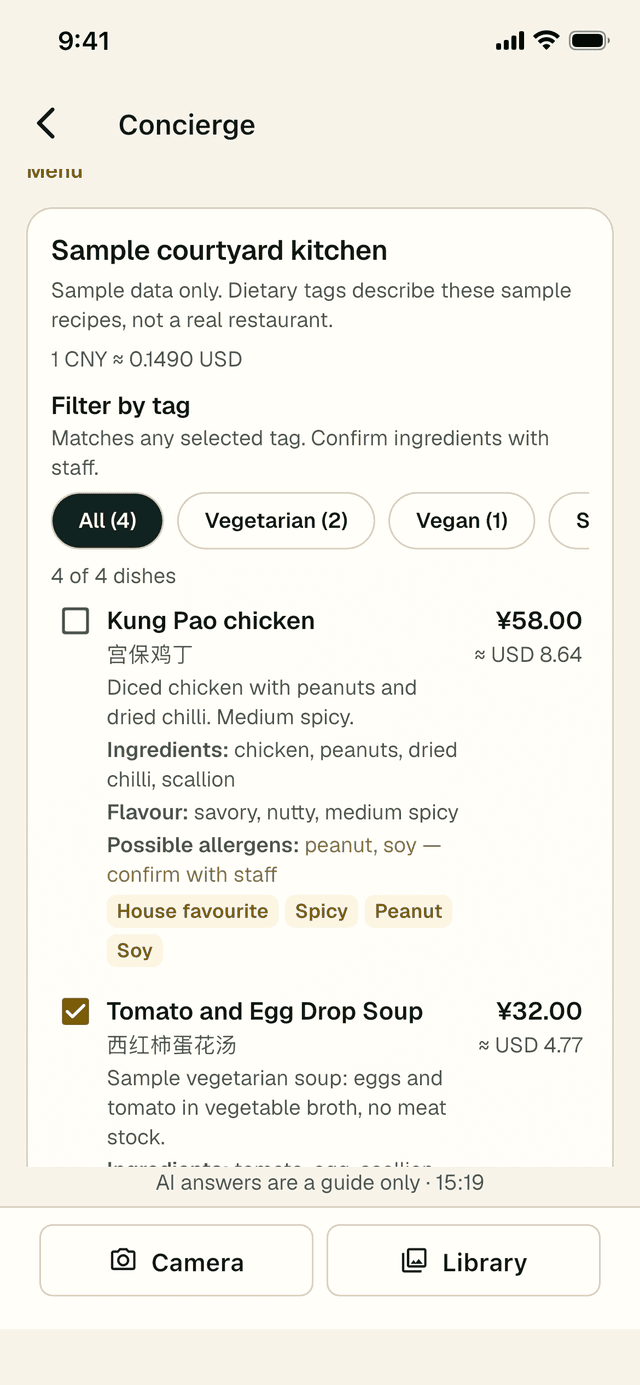
- Tap Translate menu. Dishes appear one by one with the English name, ingredients, flavour, possible allergens and the price in yuan and your home currency.
- Use Filter by tag (Vegetarian, Vegan, Spicy and so on) to narrow the list. Dishes that may not suit a dietary need are flagged with a Dietary warning.
- Tick the dishes you want and tap Make order card — see the waiter card.
Allergens are identified from the dish name and typical recipe, so always confirm with staff. Tipping is not customary in Chinese restaurants; check whether a service charge is already included.
How to read a sign
- Tap Sign and add a clear photo.
- Tap Read sign. You get an English explanation of opening hours, tickets, directions or notices, with the key points first.
How to ask about a place
- Tap Place and photograph a building, monument, artwork or custom you would like to understand.
- Tap Identify place for a short English briefing. If the place is on today’s plan, it says so.
- For an artwork, also photograph the label beside it — that gives the exact work, artist and date.
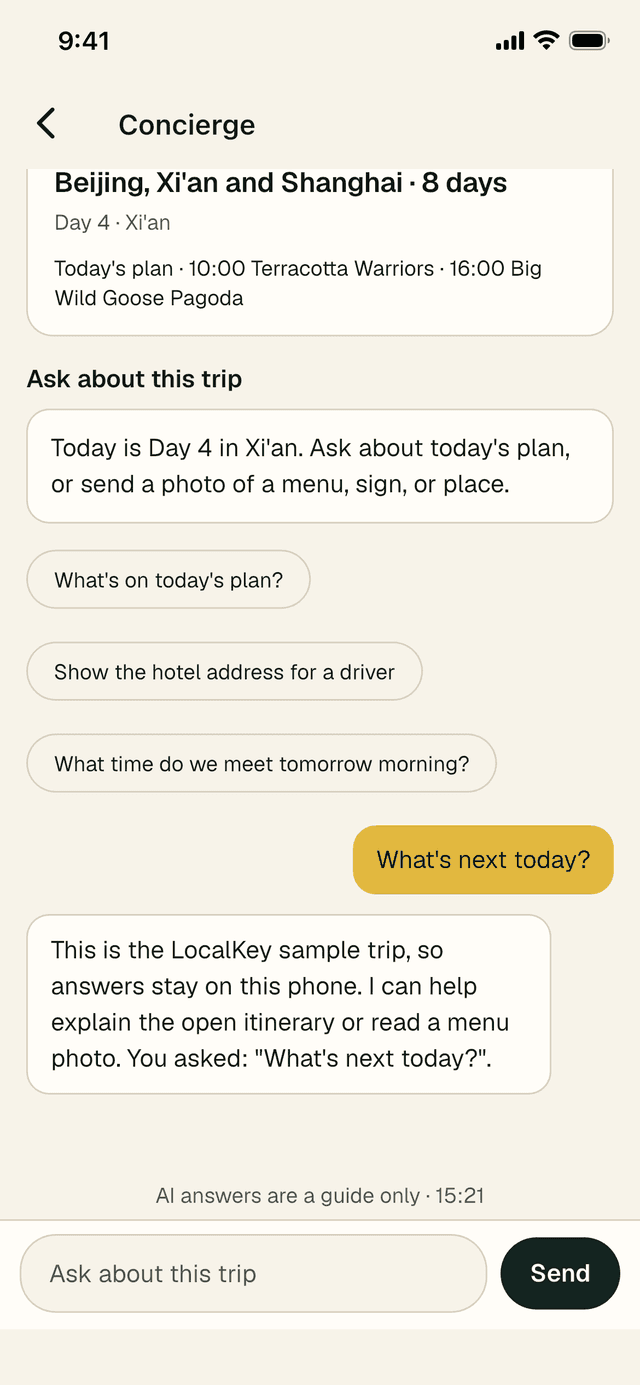
How to ask about today
- Tap Today, or one of the suggested questions such as What’s next today? or Hotel address for a driver.
- Or type your own question in Ask your concierge… and tap Send.
- Concierge answers from your own itinerary: today’s plan, your hotel, meeting points and transport.
Your daily photo allowance
Photo reads (menus, signs, places and receipts) have a generous daily allowance for each trip. You will only see a count — for example 3 photo reads left today — when you are close to it. If you reach it, the allowance resets tomorrow, and you can still ask questions in text.
7 · Essentials
Tools, contact, offline and settings
The Essentials tab gathers the tools you will reach for between sights. At the top, a gold line tells you where you are (for example “Day 4 of 8 · Xi’an”). Below it are six tiles, then four short sections: Contact LocalKey, Offline & sync, Settings and About.
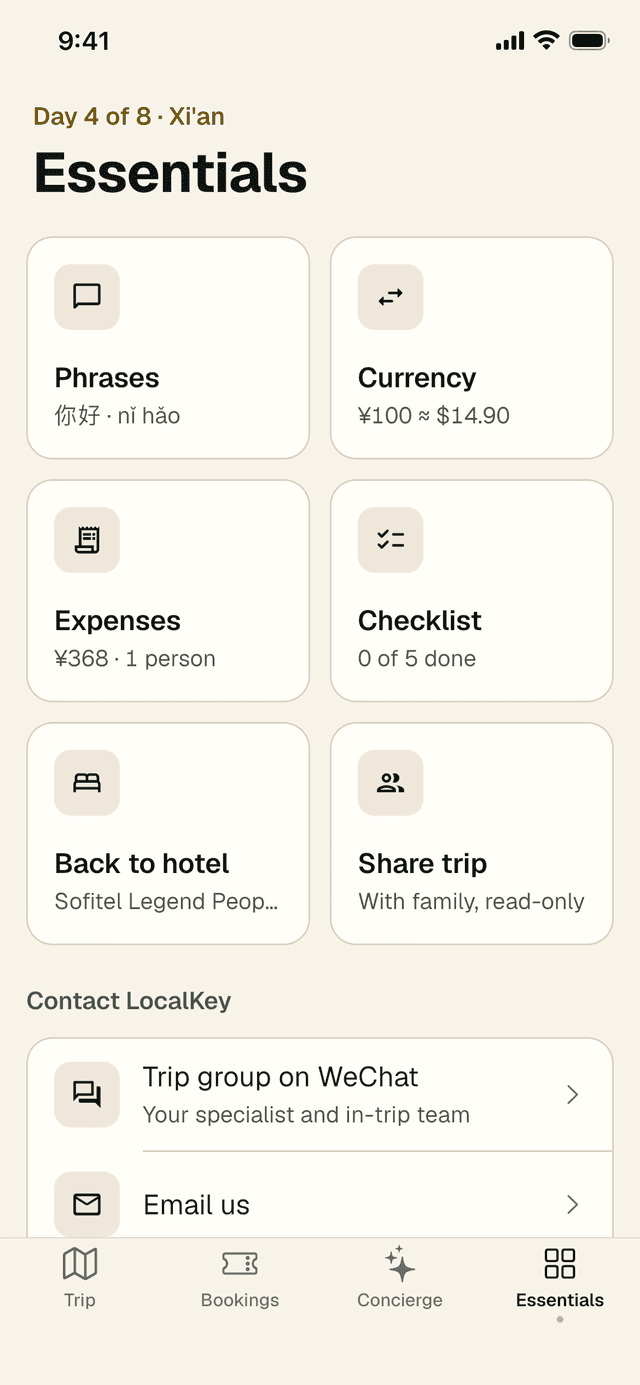
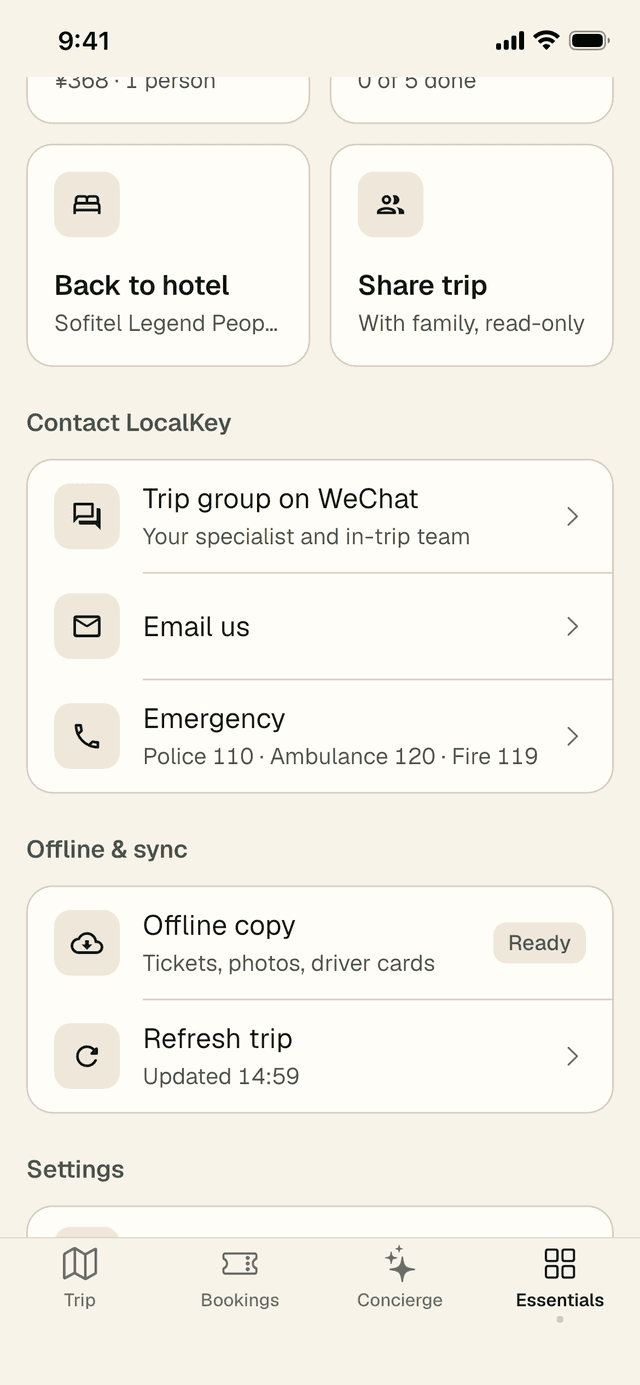
The six tiles
- Phrases — useful Chinese phrases to hear or show.
- Currency — yuan to your home currency and back.
- Expenses — shared spending and who owes whom.
- Checklist — what to do before you fly and on the day.
- Back to hotel — tonight’s hotel on a driver card.
- Share trip — a read-only link for family at home (see section 11).
Phrases
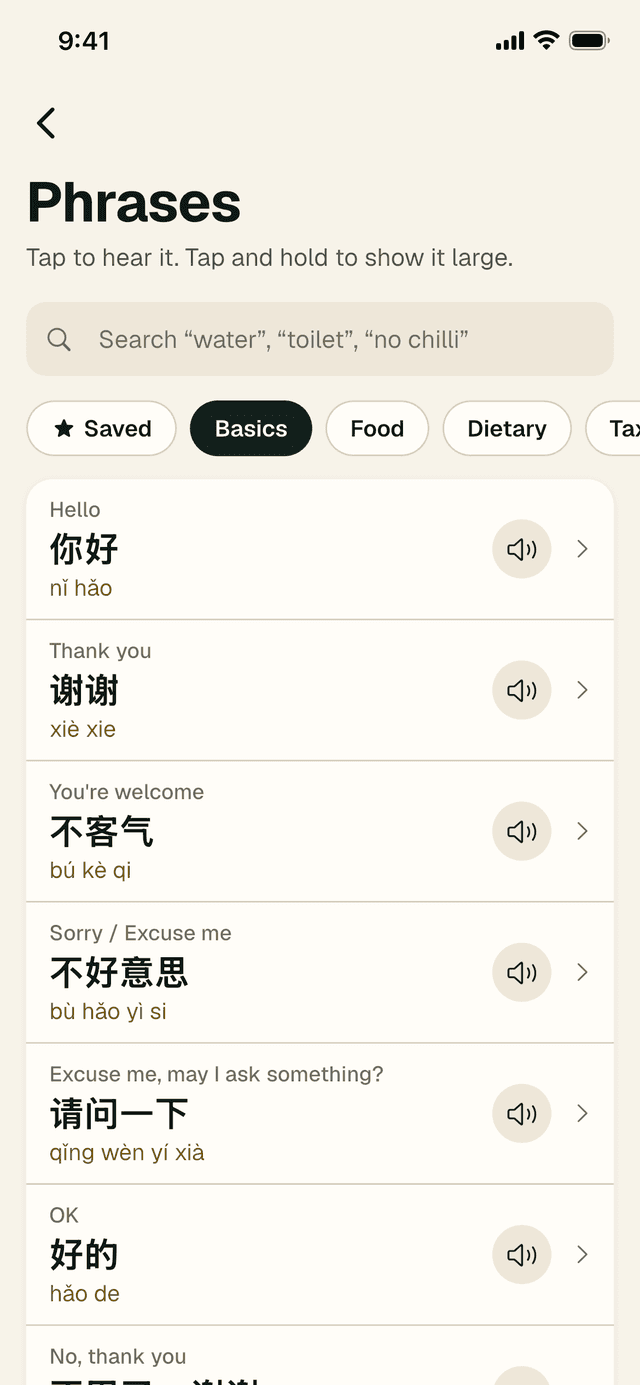
- Tap Phrases. Choose a topic — Basics, Food, Dietary, Taxi, Hotel, Shopping, Directions, Emergency — or search (“water”, “toilet”, “no chilli”).
- Tap the speaker to hear a phrase. Tap and hold a phrase (or tap the arrow) to show it large, then Play aloud or Slower.
- Tap the star to keep a phrase under Saved.
No sound? On iPhone, add a Chinese voice in Settings → Accessibility → Spoken Content. On Android, Settings → Accessibility → Text-to-speech output.
Currency
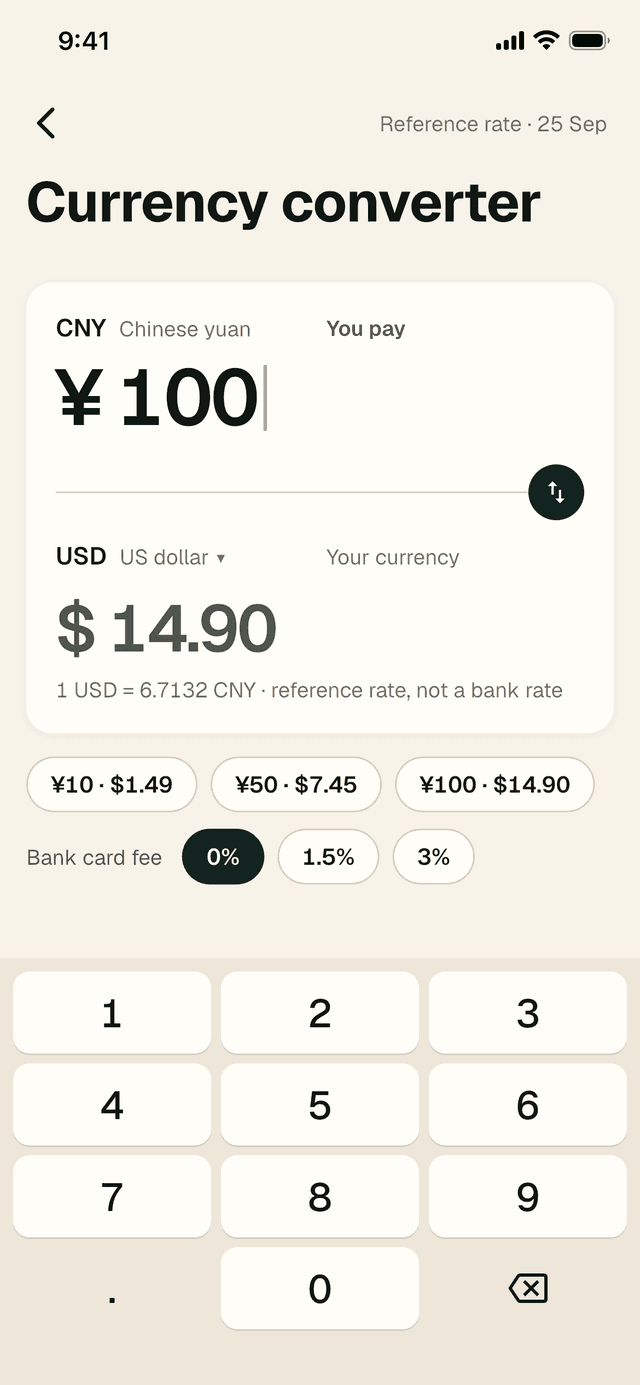
- Tap Currency. Type an amount in yuan on the keypad; your home currency updates as you type.
- Tap the arrows to swap direction. Tap your currency to change it.
- Set Bank card fee (0%, 1.5% or 3%) to see what you will really pay by card.
The rate is a reference rate, not a bank rate. Once loaded, it stays on your phone for use offline.
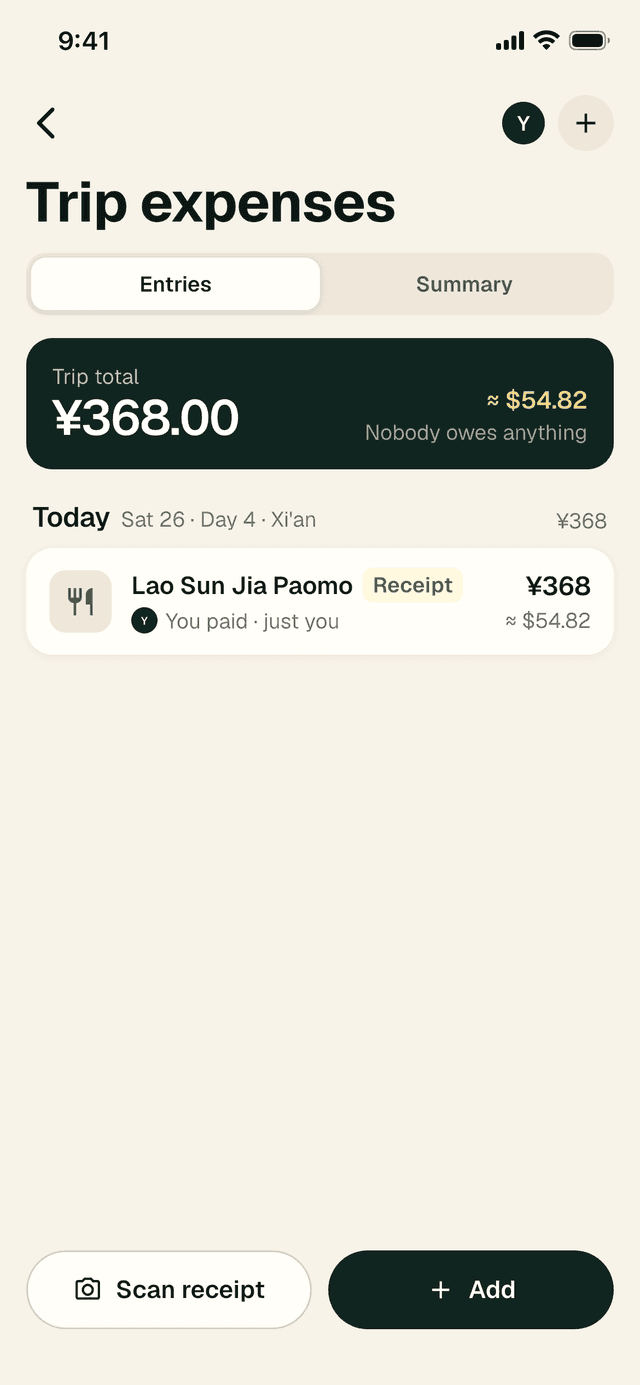
Expenses
Keep track of shared spending and settle up at the end without a spreadsheet.
- Tap Expenses. Tap the + next to your initial to add the people travelling with you.
- Tap Add to enter an expense: amount, what it was for, who paid and how to split it (Equally, By amounts or By shares).
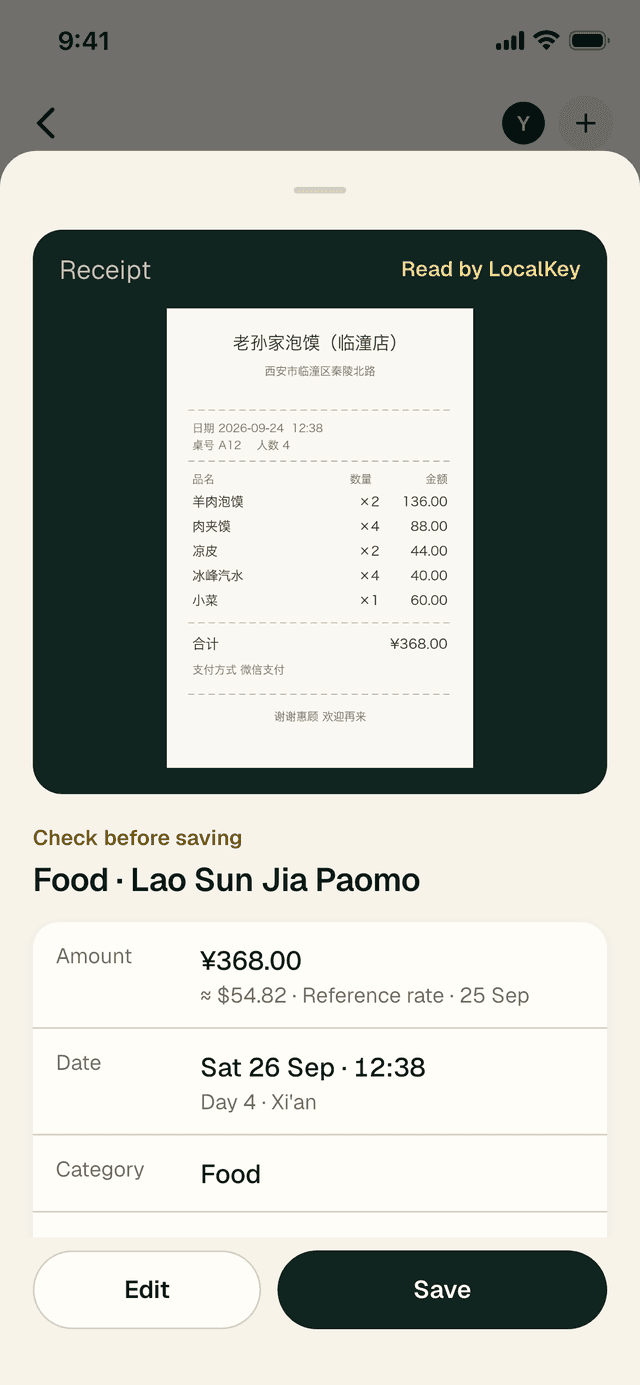
- Or tap Scan receipt. LocalKey reads the total, date and shop; you check it and tap Save. Nothing is saved until you do, and the photo isn’t kept.
- Open Summary for totals by category, who paid what and the fewest transfers to settle up. Tap Share summary to send it.
Expenses and names are stored only on your phone.
Checklist
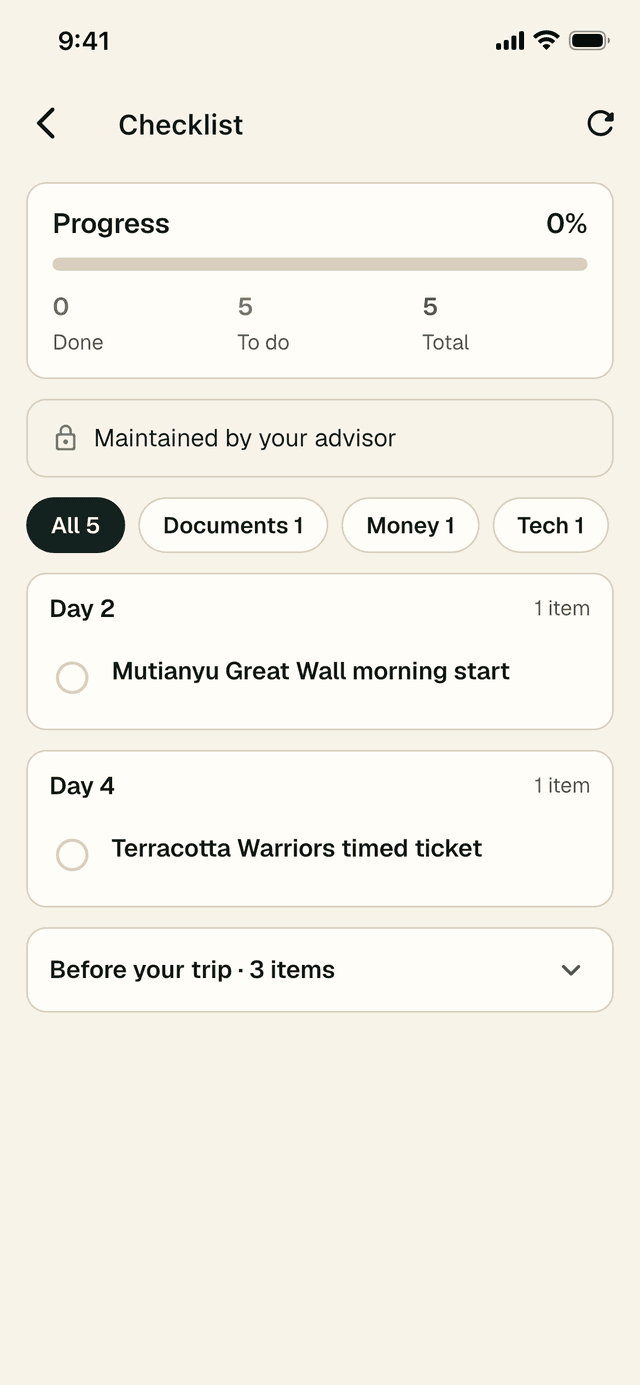
Your specialist prepares a checklist for the trip: items before you fly (passport, insurance, eSIM, adapters) and on particular days. Tap Checklist, use the filters to focus on a category, and tap the circle to tick an item off. Items marked Maintained by your advisor are kept up to date by your specialist.
Back to hotel
Tap Back to hotel for a driver card showing tonight’s hotel in large Chinese type. It changes automatically as you move between cities.
Contact LocalKey
How to reach us, fastest first.
- Trip group on WeChat — your specialist and our in-trip team are all in the group. Tap the row, then Open WeChat. If you are not in the group yet, tap Join the group, save the picture, then in WeChat go to Scan → Album and choose it.
- Chat with your specialist — appears when your specialist has a direct WeChat contact on your trip; the row then shows their name.
- Email us — service@localkeytravel.com. Your specialist replies within 24 hours, usually sooner.
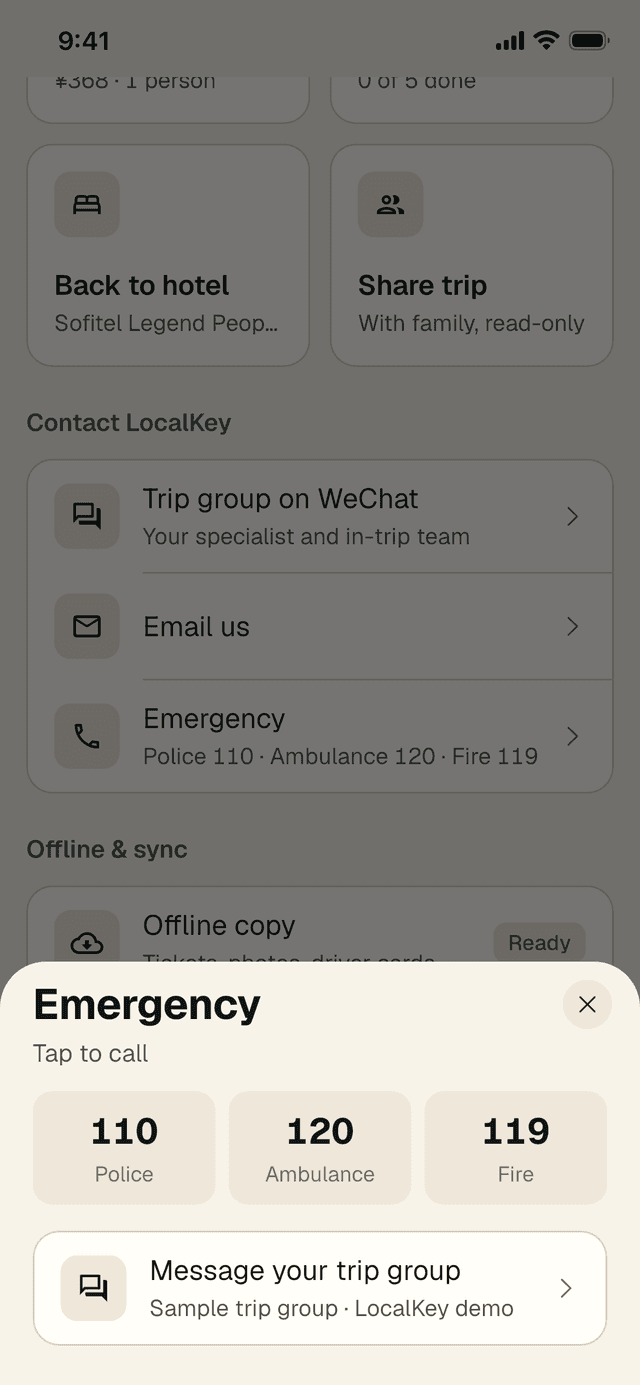
- Emergency — opens a sheet with the three numbers. Tap one to call. Below them, Message your trip group reaches our team.
| Number | Service in mainland China |
|---|---|
| 110 | Police |
| 120 | Ambulance |
| 119 | Fire |
For bookings or plan questions, contact your specialist first.
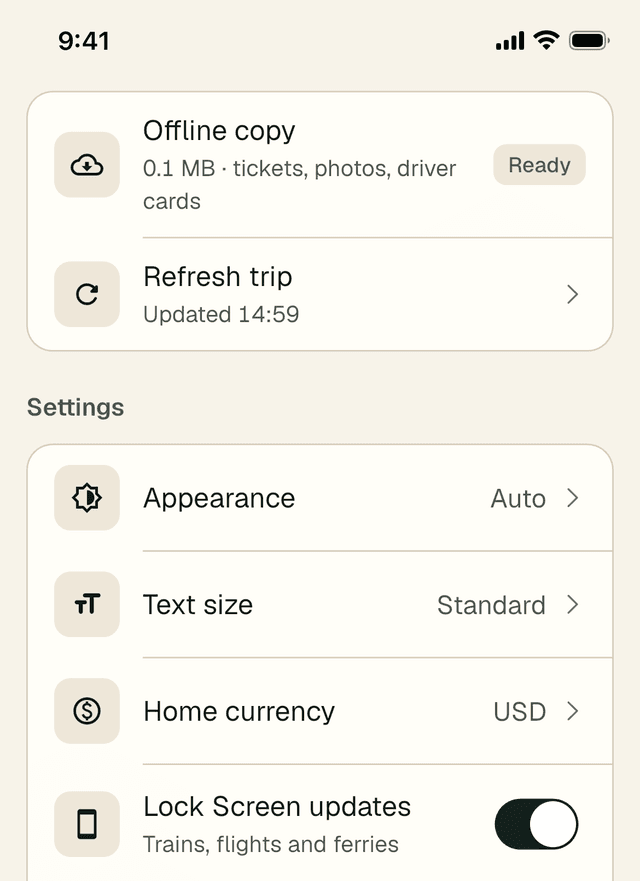
Offline & sync
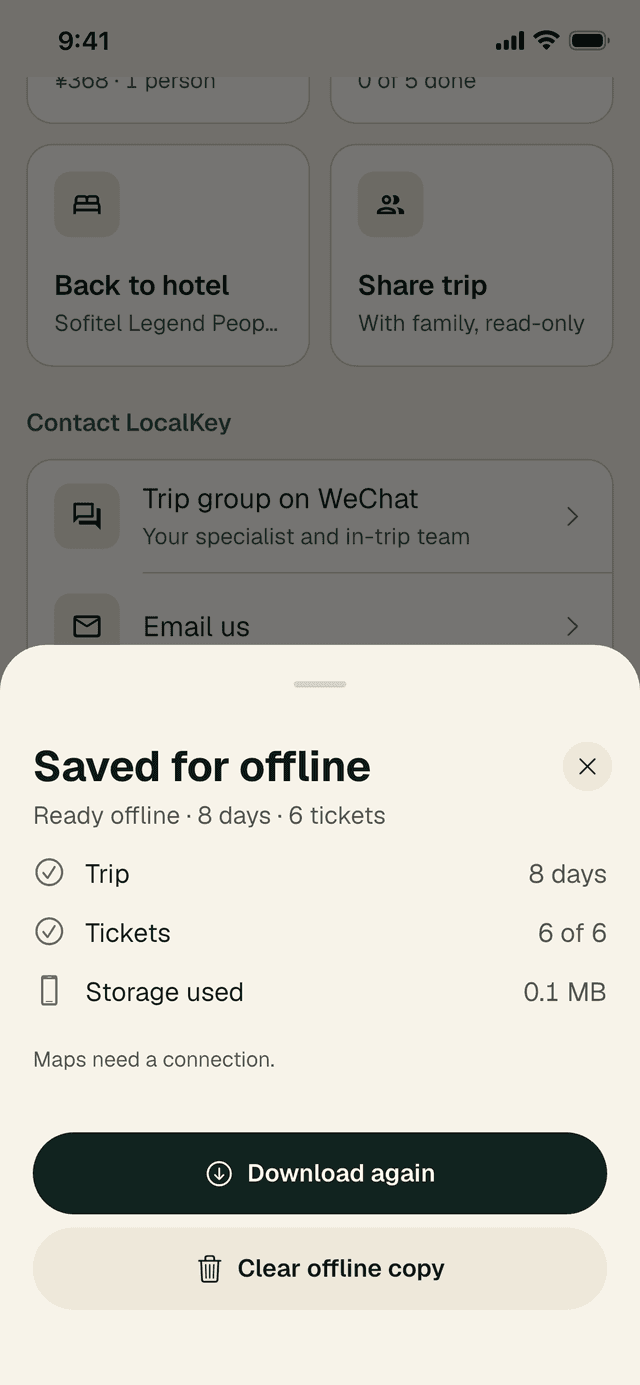
- Offline copy — what is saved on this phone, with its status (for example Ready). Tap it to see the details, download again or clear it. See section 10.
- Refresh trip — fetch the latest version of your trip now. The row shows when it last updated.
Settings
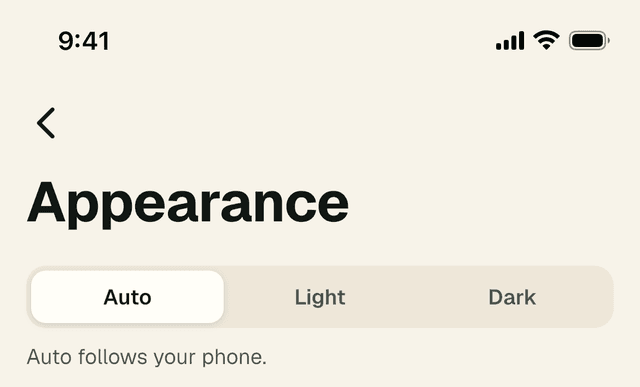
- Appearance — opens its own page. Auto follows your phone; or choose Light or Dark.
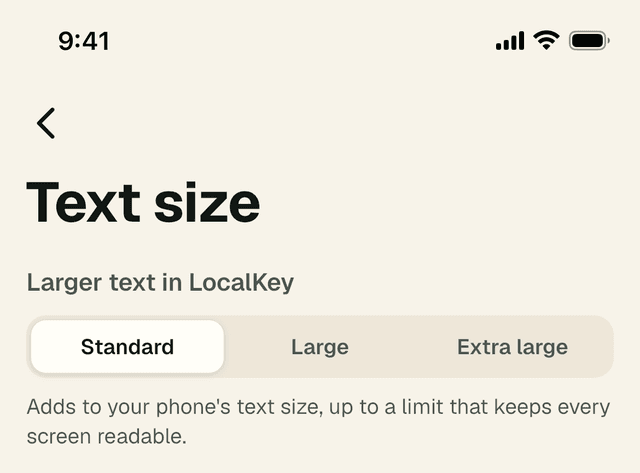
- Text size — opens its own page with Larger text in LocalKey: Standard, Large or Extra large. This adds to your phone’s own text size, up to a limit that keeps every screen readable.
- Home currency — the currency used in the converter, menus and expenses.
- Lock Screen updates (iPhone) — your next train, flight or ferry on the Lock Screen. On Android this reads Live departure notification. See section 8.
About
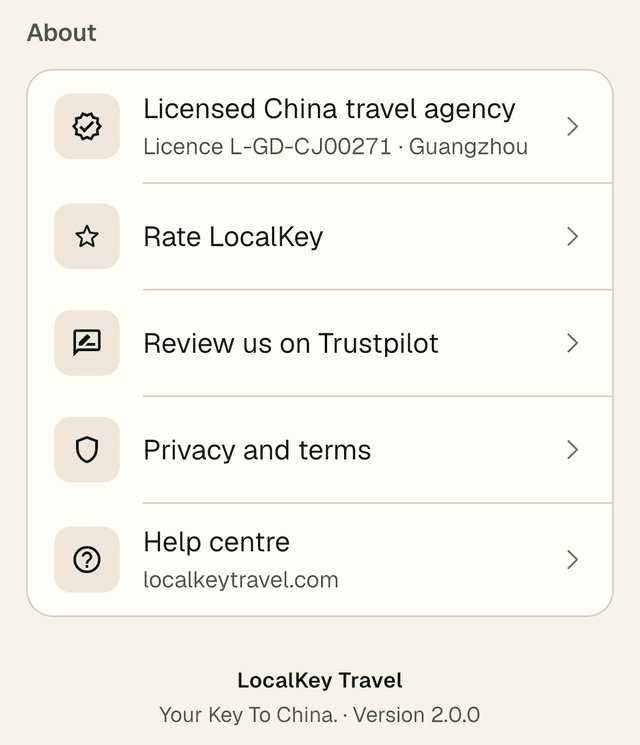
At the bottom of Essentials: our travel agency licence, Rate LocalKey, Review us on Trustpilot, Privacy and terms and the Help centre on localkeytravel.com. The last line shows the app version — useful if you ever need to tell us which one you have.
8 · On your Lock Screen
Live Activities, reminders and notifications
Lock Screen Live Activity and Dynamic Island (iPhone)
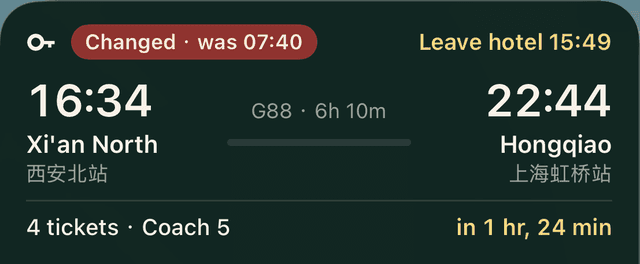
From two hours before a train, flight or ferry, a card appears on your Lock Screen with the departure and arrival times, stations, when to leave the hotel and a countdown. If your specialist changes the time, it shows Changed · was 07:40. The card is updated by LocalKey, so a change reaches your Lock Screen even when the app is closed. On iPhones with the Dynamic Island, the same countdown sits at the top of the screen while you use other apps; touch and hold it to expand.
- The first time, iPhone asks whether to allow Live Activities from LocalKey. Tap Allow.
- You can turn them off at any time in Essentials → Settings → Lock Screen updates.
Reminders
LocalKey reminds you before the moments that matter, on the same timing as the Next up card (see section 2): trains, ferries and transfers 90 minutes before departure, timed entry 60 minutes before, hotel check-in at check-in time, and changes from your specialist.
Flight reminders
For each flight you get one flight briefing, not a string of alerts. It arrives 4 hours before an international flight, or 3 hours before a domestic one. If that falls between 22:00 and 07:00 local time, it comes at 21:30 the evening before instead. The briefing gathers what you need in one place:
- The flight number and departure time, and your terminal.
- The check-in counters and when check-in closes.
- The gate, if it is already known.
- The time to be at the airport by.
On iPhone, LocalKey then notifies you again only if something important changes — a longer delay, a cancellation or a gate change — and after landing you get your baggage belt. On Android, you get the same briefing; later changes and your belt show in Bookings and Updates when the app next refreshes. Connecting flights are shown together in Bookings, so you can see each leg and the time between them.
Notifications and permissions
- Allow notifications when the app asks, or tap Turn on on the Get alerts on this phone card in Updates.
- Allow Live Activities on iPhone, as above.
- Camera and photos are only requested when you use Concierge or scan a receipt. Calendar is only requested if you choose to add your trip to it.
Missed a notification? Everything important is also in Updates (the bell).
9 · On Android
The same trip, a few differences
LocalKey works the same way on Android phones. A few things look or behave differently.
- The map. Inside China, the Trip map on Android uses Tencent map tiles, with place names in Chinese. Your stops, numbers and route lines work in the same way.
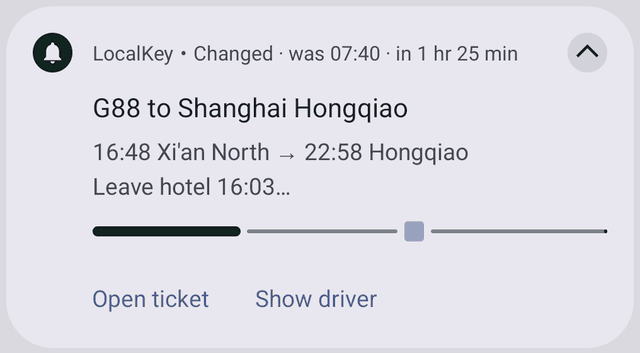
- Live departure notification. Instead of a Live Activity, you get an ongoing notification from two hours before a train, flight or ferry: the times, when to leave the hotel and a progress bar, with Open ticket and Show driver buttons. It updates when the app picks up a change. Switch it on or off in Essentials → Settings → Live departure notification.
- Flight changes. You get the same flight briefing as on iPhone. Later changes, such as a delay, a new gate or your baggage belt, show in Bookings and Updates when the app next refreshes, rather than as separate notifications.
- No Apple Wallet button. Open tickets from Bookings instead — they work offline.
- Map apps. Navigate offers the map apps installed on your phone; Apple Maps is iPhone only.
- Permissions. Android asks separately for notifications and, on some phones, for Alarms & reminders (exact alarms). Allow both so reminders arrive on time.
10 · No signal
Using the app offline
Stations, mountain areas and some museums can have patchy signal. LocalKey saves your trip to the phone the first time it opens, so the essentials keep working.
How to check what’s saved
- Go to Essentials → Offline & sync. The Offline copy row shows its status, for example Ready.
- Tap it to open Saved for offline: your trip (number of days), tickets (for example “6 of 6”) and Storage used in MB. Anything not yet saved is listed as missing.
- If you see Some items couldn’t be saved — tap to retry, connect to Wi-Fi and tap it.
- Tap Download again to refresh the whole copy.
How to free space
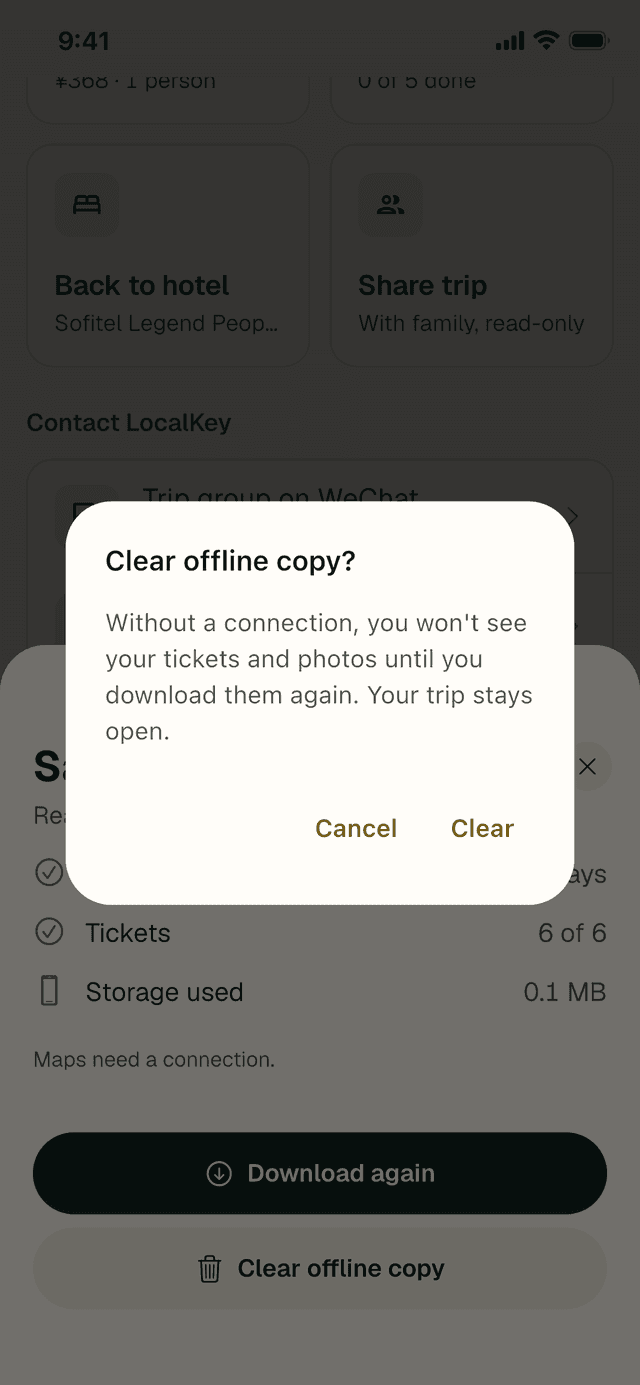
In the same sheet, tap Clear offline copy, then Clear to confirm. Your trip stays open. Tickets and photos then load from the internet until you tap Download for offline again — so do this only when you have a good connection.
Saved on your phone
- Your day-by-day plan, addresses and driver cards.
- Ticket and booking originals (they open offline in Bookings).
- Place photos and guides.
- The last currency rate you loaded, your phrases and your expenses.
Needs a connection
- The map itself, and directions in map apps.
- Concierge, live flight status and new updates from your specialist.
When you are offline, the Trip tab shows Offline · showing your trip as of …. Tickets and addresses still work. With Low Data Mode on, only tickets and driver photos are saved, to spare your data.
11 · Family at home
Share with family
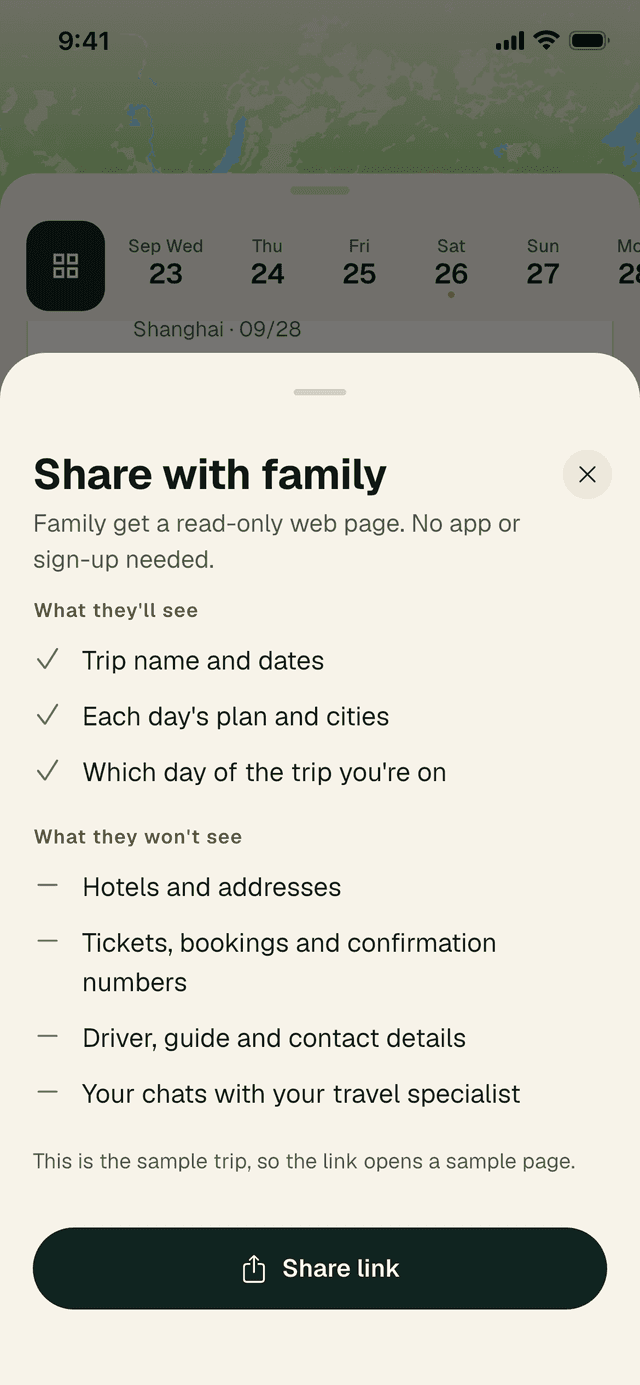
Let family follow along without sharing your bookings. They receive a read-only web page — no app or sign-up needed.
- Tap Share trip in Essentials, or Share this trip with family at the end of the Overview on the Trip tab.
- Check what they will and won’t see, then tap Share link and send it by message or email.
What family see
- Trip name and dates
- Each day’s plan and cities
- Which day of the trip you’re on
What they don’t see
- Hotels and addresses
- Tickets, bookings and confirmation numbers
- Driver, guide and contact details
- Your chats with your travel specialist
If the option says family links are turned off for your trip, your specialist can switch them back on.
12 · Afterwards
After your trip
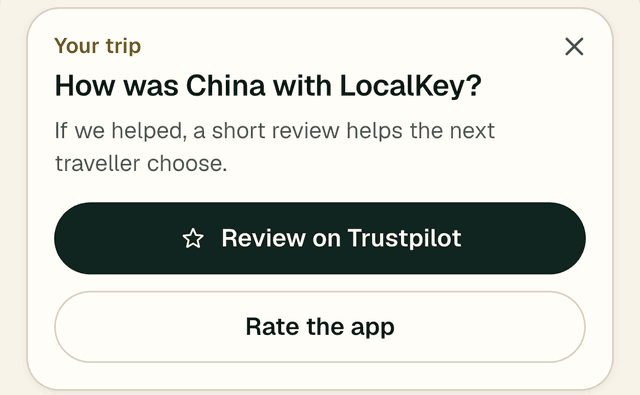
On the evening of your last day (and for a week after your trip), a short card appears at the top of the Trip tab: How was China with LocalKey? If we looked after you well, a short review helps the next traveller choose. Tap Review on Trustpilot or Rate the app — or the × to hide it.
Your trip stays in the app afterwards, so you can look back at where you went. Concierge can still answer questions about documents, what you saw and local details.
13 · Questions
Questions and troubleshooting
Using the app
Why don’t I see Next up?
That’s normal. The Next up card only appears when a reminder is due — for example 90 minutes before a train or 4 hours before an international flight (see the table in section 2). If you closed it with the ×, it stays closed unless something important changes, such as a bigger delay, a cancellation, a gate change or a new time from your specialist. It also closes itself once the moment has passed. Your full plan is always on the Trip tab.
Why is a route line dashed?
A solid line follows the real roads or rail line. When we don’t have a route for that stretch, the map draws a dashed straight line between the two stops instead. It shows the rough direction only — tap Navigate for real directions.
How do I free space on my phone?
Go to Essentials → Offline copy → Clear offline copy and confirm. The sheet shows how many MB the copy uses. Your trip stays open; tickets and photos load from the internet until you download them again, so clear it only when you have a good connection. See section 10.
How many flight notifications will I get?
One flight briefing per flight, 3 or 4 hours before departure, with your terminal, check-in counters and closing time, gate if known and when to be at the airport. On iPhone, after that you are notified only of important changes (a longer delay, a cancellation or a gate change), plus your baggage belt after landing. On Android, those show in Bookings and Updates when the app refreshes. See section 8.
Data and privacy
Does LocalKey track my location?
No. LocalKey does not follow where you are. The map shows your trip’s places, and Navigate hands the destination to your map app, which handles directions.
What is stored on my phone?
Your trip (plan, addresses, tickets, photos and guides) for offline use, your settings, your saved phrases and your trip expenses. Expense names and amounts stay only on your phone. Photos you send to Concierge are used to answer you; receipt photos are not kept in your expenses.
Who can see my trip?
Anyone with your trip link can open it, so share it only with the people travelling with you. For family at home, use Share with family instead — it hides hotels, bookings and contact details.
Android
What is different on Android?
The map uses Tencent map tiles inside China, you get a live departure notification instead of a Live Activity, and there is no Apple Wallet button. See section 9 for the full list.
Troubleshooting
My reminders arrive late on my Android phone
Some Android phones (including several Xiaomi, Huawei, OPPO and vivo models) limit apps in the background to save battery, which can delay reminders. In the app, tap Delivery tips at the bottom of Updates (the bell), or change these settings yourself:
- Battery: set LocalKey to “No restrictions” or “Unrestricted”.
- Auto-start: allow LocalKey to start in the background, if your phone has this setting.
- Alarms & reminders: allow LocalKey to set exact alarms.
If you can’t find them, open Settings → Apps → LocalKey on your phone.
I’m not getting any notifications
Check that notifications are allowed for LocalKey in your phone’s Settings. In the app, the Get alerts on this phone card in Updates will offer Turn on or Open Settings.
Phrases or the driver card don’t play any sound
Your phone needs a Chinese voice. iPhone: Settings → Accessibility → Spoken Content. Android: Settings → Accessibility → Text-to-speech output. Also check the phone isn’t on silent.
The map is blank
The map needs a connection. Your plan, tickets and addresses still work offline — use Show driver to get where you need to go.
My trip looks out of date
Go to Essentials → Offline & sync → Refresh trip. If something still looks wrong, message your trip group.
My trip link has expired
Ask in your trip group or email service@localkeytravel.com. Paste the new link with Paste a new link. See Getting started.
Which version of the app do I have?
Scroll to the bottom of Essentials. The last line reads, for example, “Your Key To China. · Version 2.0.0”.
Get the app
Ready for your trip?
Install LocalKey Travel before you fly, then tap the trip link your specialist sent you.
Screenshots show the LocalKey sample trip in app version 2.0.0. Your own trip, times and bookings will differ. Questions about the app? Email service@localkeytravel.com.